Monday, May 15, 2023

How To Disable Split Screen On iPad

How To Disable Split Screen On iPad

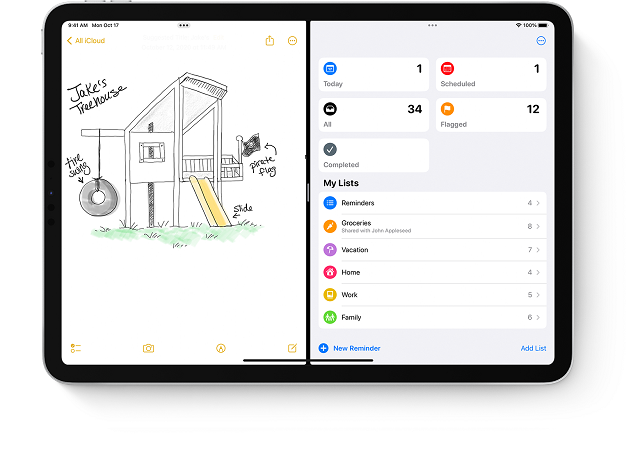
Are you thinking about how to get rid of split screen on iPad? First, you need to know that Split View is the default on iPad. So, several people accidentally open split screens on their iPad when they are using the Safari app. Although several ways are there to use split screen on the iPad, a few users do not prefer the iPad split screen. Actually Split View is the name of the feature. Even several iPad users are now regretting the day when they upgraded to iOS 15. Therefore, for them, it becomes essential to get rid of this. Let's see how to turn off this feature on the iPad.

How to Disable Split Screen on iPads Running iOS:

Disabling split-screen mode completely on iPads that run iOS 15 and newer is impossible. Unlike earlier iOS versions, disabling the Split View option is not available now. Once the system detects you are multitasking, Split-screen will activate automatically.

Now we can see that it is impossible to turn off multitasking & split-screen directly from Settings on iOS and newer. If you are willing to access extra multitasking options, you need to use the three-dot button, which is located at the screen top.

How to Close Split Screen on Your iPad:

Multitasking on the iPad, including Split View, increases productivity as long as you know how to use this. Before iPadOS 15, there were two options to stop the split screen on iPad. First, you can disable the split screen in iPad Settings. Secondly, your task is to close the split screen on your iPad for apps you are using.

Nowadays, you are unable to turn off the split screen on the iPad by disabling this altogether. It is the only solution to close the split screen. Suppose you have accidentally entered Split View. To undo the split screen, you need to drag the divider bar in the direction of the app you are willing to close.

When you open the black divider bar, your task is to tap & drag the grey controller to the iPad screen's left or right edge in Split View.

The direction in which the divider will be slid will determine which side of the screen is closed and which remains. The smaller window is going to close when you exit the iPad split screen. You can see the larger screen open as a full-size app window.

You need to release it while the divider is far across the screen.

It is very simple to close the split screen on the iPad.

How to Stop Split Screen on an iPad from Happening Accidentally:

If you want to prevent the accidental iPad split screen in the future, go to the three dots at the top of the app windows. When you accidentally drag the icon, it will cause every variation in window size & placement. Therefore, it is better to know going forward. If your iPad shows a half-screen app view, your task is only to learn the procedure of exiting the split screen on the iPad. Let's see how to do so.

How to Exit Split Screen on the iPad in Safari:

Split View in the Safari browser is actually a new iPad multitasking feature for iOS 10, and it is available in iPadOS 16. It lets you open two separate Safari web pages simultaneously on the iPad. If you want to return to full screen from the Safari split screen on iPad, you must click on the black divider bar and drag it to the screen's side or the other.

How to Turn Off Split Screen On iPad:

  • By default, the feature is enabled on iPad. Suppose many apps are running, and you are willing to close a specific one. In that case, your task is dragging the app divider over that app that you desire to close to the edge. 
  • Once you open two apps on the screen, a dividing line will appear between the two apps. 
  • After that, you must tap the app divider and drag it to the right or left. It relies on the app's side, which must be closed. 
  • Then, you need to release the divider until the screen's edge. You can see an app's full-screen view here.

Which iPads Support iPad Split View with iPad IOS 13 or later version?

Whether you are willing to use split-screen browsing on the iPad, ensure that you use the 5th-generation iPad or iPad Pro, iPad mini 4, iPad Air 2, or any other 5th-gen or later model. The reason is that iPad models which are previous to the 5th generation are not compatible with a split-screen view. Ensure that you have updated your tablet to the iPadOS's latest version.

How to Close a Small Floating Window on iPad:

A smaller window is available on the screen's side hovering over a full-screen app at the time of using an iPad. We call it Slide Over, a process used for multitasking on the iPad. Converting this to the split screen and closing this is the simplest way to close the floating window.

  • Your first task is to hit the centre button & hold this on the floating screen. After that, you need to drag this down toward the screen's bottom. 
  • Release the floating screen when it attempts to merge into a split-screen view. 
  • Finally, your task is to drag the split screen divider to the left of you to the right to close the screen you want.

Split Screen Confuses Users:

Although Apple proudly says that the newly available options have made the use of split-screen easier, every person does not agree with this. Several iPad users (older people) don't know what to do when two screens appear on their iPads. For instance, if you are writing something in the Safari URL field, a split-screen gets activated automatically. Apple offers users two screens rather than providing a very simple interface.

Apple included a multitasking feature also, as several users have wanted to have this since the iPad was launched. But all users do not need the feature, and it has become an issue. The company must let users decide how people are willing to use their devices. As per the user's report, this split-screen feature has made the using process of iPad difficult and causing frustration among the users.

When Split-screen is constantly popping up on your small iPad Mini display, it is disrupting the workflow. Above all, the changes may cause a poor user experience. A few people can think twice before they get a new iPad following this experience. Several apps have a button below the split-screen pop-up button to worsen things. Many users turn on the split-screen mode accidentally when they use their apps.

What Should Apple Do?

The company needs to offer users a choice of moving the split-screen button or removing this completely. You can give feedback to the company to let them know how much you hate the automatic split-screen feature. If there are more reports, the probability of change is higher.

Conclusion:

Currently, no option exists to disable completely the split-screen feature on iPads running iOS 15 and newer versions. If you are multitasking, Split View will automatically activate once the iPad detects this. If you are willing to exit Split View, you must slide the split-screen bar to the left or right based on the app you are eager to close. It is all about how to disable split screen on ipad safari and other details related to it.

Frequently Asked Questions

Q. How do you restore your iPad to full screen?

You will find the screen in normal mode when you turn off the split-screen feature. Ensure that you must tap & hold the window, which doesn't need any more. Then, you should swipe this to the screen's edge. The app you are willing to remain in will be transferred to full-screen mode.

Q. How do you turn off the side swipe on your iPad?

If you are willing to make the Slide Over disappear, you need to hold the grey bar & drag it at the Slide Over's top to the iPad's right side.

Q. How do you turn off the split screen on iPad IOS 15?

Whether you want to turn off the split screen, your first task is to open the Settings app. As soon as you are in the Settings app, you have to click on the General option. Then, you need to click on the Multitasking & Dock option. At last, toggle the Off button, which is adjacent to the Allow Multiple Apps option.

Wednesday, April 26, 2023

How to Remove Background from Photos In iOS 16 on iPhone

How to Remove Background from Photos In iOS 16 on iPhone

Are you worried about how to remove background from Photos in iOS 16 iPhone? If so, then relax because the release of Apple's latest iOS 16 has solved the problem. Due to the availability of the new feature, several system aspects have been improved. The image cutout feature of images, launched newly, is one of its famous features. The feature lets you explore multiple aspects of pictures after editing the background. This article lets you know how to remove background from Photos on iPhone & iPad.

iPhone Models Supporting iOS 16’s Background Removal Feature

Are you wondering if your iPhone supports this new feature? Apple says that this feature takes the help of advanced ML and image analysis functionality. According to the company, the feature is only available on iPhones with an A12 Bionic processor or later. These are all iPhones which supports the background removal feature:

  • iPhone 13 
  • iPhone 13 mini 
  • iPhone 13 Pro
  • iPhone 13 Pro Max 
  • iPhone 12 
  • iPhone 12 mini 
  • iPhone 12 Pro
  • iPhone 12 Pro Max 
  • iPhone 11 
  • iPhone 11 Pro 
  • iPhone 11 Pro Max 
  • iPhone XS 
  • iPhone XS Max 
  • iPhone XR

How To Remove Background From Photos:

Three methods are in total using which you can isolate subjects from the background.

In this case, you must know that the background removal feature is suitable for images with a clearly identified subject. If you are willing to isolate any pet or object or person from Photos, these methods are beneficial.

Method 1) Remove Background from Images in the Photos App:

We usually browse our pictures in the Photos app. Are you willing to remove the background from an image? Then, let's see how to do so.

  • When you open the Photos app, your first task is opening the picture from where you are willing to remove the background. You should tap on the subject and hold this until you see a white glow around the image. 
  • After that, your task is to drag the subject to lift off the background. It is possible to drag and drop this anywhere you wish, like in iMessage or WhatsApp. 
  • You can choose an alternate way. As soon as the white glow begins to show, your task is to stop holding the picture. A pop-up menu appears with the following options:
  1. Copy 
  2. Share
  • It is possible to use 'Copy' to copy the picture without the background. Thereafter, try to paste this wherever you wish. Otherwise, you need to click 'Share' and directly share the "sticker."

Method 2) Remove Background from Web Images (Safari Only):

If you are willing to make a sticker from a picture available on the internet or remove the background from any internet photo, use Safari to do this directly. There is no requirement to download the picture and use the Photos application. These are the steps you should follow to remove backgrounds from pictures in iOS 16.

  • You should first find an image in Safari. Then, you should click on this and hold it for one or two seconds. You can now see a pop-up window appearing. 
  • After that, you should look for the option "Copy Subject" in the pop-up window. Then, the background remover of the iPhone will separate the subject and the image's background. Then, it will remove the background. 
  • Next, paste the background image you removed into other applications.

Method 3) Remove Background from Images using the Files App: 

  • Removing backgrounds from pictures saved in the Files app is possible on iPhone. In this case, there is no need to export them to the Photos app.
  • Your first task is to open the Files app. Then, you should go to the picture from which the background will be removed. 
  • After that, your task is to long press on the picture thumbnail in the Files app. You should click on 'Quick Actions.' Then, you have to click on 'Remove Background.'

Thus, the Files app can help you to remove the background from the image.

With the help of the Apple Files app, you can easily remove subjects from images.

  • You should launch your Files app first on the iPhone. Now, navigate to an image. 
  • After that, you should tap on the image and select Quick Actions. You need to click on Remove Background in the contextual menu. 
  • You can see the Files app removing the background immediately from the picture. Then, you should save it in the exact location.

Conclusion:

In this article, we have let you know how to remove background from Photos in iOS 16 on iPhone. Use the default software available on your iPhone or iPad, but it is only possible when your device works on iOS 16 and its higher version. Removing backgrounds is possible in Photos, Files, and Safari. You can share the created transparent images or use them in other applications.

Frequently Asked Questions:

Q. How do you Edit Photos on iOS 16?

When you open Photos, you need to click on an image or video thumbnail so that you can see this in full screen. Then, you have to click on Edit. See the editable effects, like Exposure, Brilliance, Highlights, and Shadows, by swiping left under the photo. Now, you should click on the effect to edit. Finally, your task is to drag the slider to make goodadjustments. 

 Q. How do you remove the background from Apple photos?

You need to drag over any background part. Then, the area you dragged over is selected. If there is any pixel beside this, it will have the same colors. If you are willing to delete a chosen area, you need to tap on Delete. If you are willing to delete outside of the chosen area, select Edit and Invert Selection. Finally, tap on Delete.

Q. What's new in iOS 16 photos?

iOS 16 comes with undo and redo buttons for streamlining photo editing. It is a feature that is unavailable in prior versions of iOS. When you use undo and redo buttons, these let you remove edits to photos individually instead of cancelling all edits by reverting an image completely.

Monday, April 17, 2023

How To Recover Your iPhone's Data with or without a Backup

How To Recover Your iPhone's Data with or without a Backup

If you are an iPhone user, you may have lost your iPhone data if you have not backed it up. Not every iPhone user backs up the iPhone daily. But when any accident happens, they want to restore the data, but find that no backup is available. So, what should you do then to recover the lost data?

Several iPhone owners have lost important data or deleted it due to their mobiles being lost or dead. Restoring the data from a backup file is the most effective way to recover iPhone data. You must perform a factory reset to fix iOS problems, such as system problems or application errors. Hence, you can try to reset or wipe your device to solve such issues due to which your device gets stuck in a loop, appears sluggish, etc. Sometimes, performing a factory reset can result in data loss as it indicates "Erase All Content and Settings."

How to recover iPhone data from iCloud

Have you synced on iCloud? If it is the case, several individual files like personal photos, videos, and documents can be accessed without doing too much. In that case, your task is to navigate to iCloud.com. You can enable iCloud sync also on one of your other devices.

However, if your iPhone is working, you should try to restore from an iCloud backup. This process takes some time. Besides, you are unable to recover anything you saved between the backup and device failure. These are the following steps you need to do:

  • When you are not starting your work with a fresh iPhone, it becomes necessary to perform a factory reset. First, you should navigate to Settings. Then, go to the General. 
  • After that, go to Transfer or Reset iPhone. 
  • You should click on Erase All Content and Settings. 
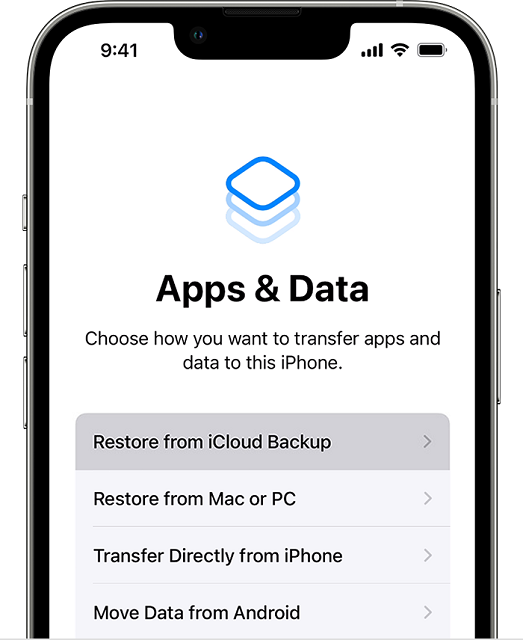
  • When you set up your iPhone, you must select Restore from iCloud Backup on the Apps & Data screen. Then, it is essential to sign into iCloud with the Apple ID. 
  • You should choose the latest backup entry unless you suspect any linked app update or any kind of software change which has triggered the issue. 
  • Then, you should sign into any Apple ID or, more than that, only those linked to apps and purchases. If you remember your Apple ID, try to sign in to secondary accounts. 
  • You will find your iPhone usable as soon as you get dropped back at the homescreen. However, files & apps will take time to get downloaded in the background. It is essential to force some file downloads when you require them locally. 
  • You don't need to switch from Wi-Fi to cellular data during the procedure of re-download. Whether you do not have any data caps, non-stop 4G or 5G downloads consume battery power very quickly.

How to BackUp an iPhone to iTunes?

Are you willing to back up your device to a computer? Then, it is necessary to use iTunes. Remember that you must not edit the folder despite being able to access the iPhone backup location on the PC. Otherwise, you can find the backup corrupted and unusable.

If you want to back up your iPhone to iTunes, follow these steps.

  • Your first task is to link the iPhone to the PC using a USB cable. 
  • Now, you need to wait until iTunes will launch automatically. 
  • Tap the "Device" icon and select "Back Up Now."

How to recover data from your iPhone without backup:

If you are unwilling to restore an iCloud backup or didn't enable the feature before something wrong happens, it is possible to recover data using different means.

A few files can have copies on third-party cloud services like Dropbox, Google Drive, or Microsoft OneDrive. It is necessary to avoid any situation where data is on the iPhone unless the data is confidential.

When you use active iCloud sync, a few apps will save data that you can restore separately. For instance, WhatsApp comes with an iCloud option for chat history. Therefore, it is essential to turn on manual or automatic backups for the service before anything happens, like histories are linked to individual phone numbers. If no method works, but you still want to recover your files, then you should use third-party desktop software.

Conclusion:

Losing data without backup is an irritating problem that several users face. Although you can recover your lost data without backup, it is a good habit to back up your device regularly. It allows you to save your time and save you from any kind of hassle. Remember that iOS comes with security precautions and encryption. Therefore, if you're trying to recover files in a direct way and forget the associated password, it can cause some data to remain out of bounds. Even any forensics company can not easily crack a fully updated iPhone.

Frequently Asked Questions:

Q. Can data be recovered after a factory reset iPhone?

It is possible only if the data is overwritten. You need to use a professional data recovery tool for this job.

Q. Can you recover the data you deleted 1 year ago?

Yes, it is possible, but it still relies on whether the data is completely overwritten. Otherwise, you can use data recovery software to retrieve the deleted data. Remember that it is always good to restore your backup file so that you can get the old data you have deleted.

Monday, April 10, 2023

How to Switch On Voice Isolation On iPhone

How to Switch On Voice Isolation On iPhone

During any phone call, background noise is always annoying. It irritates you even more when you or the person you are talking to is in a noisy environment. Voice Isolation on iPhones is a feature that can decrease background noise and enhance call quality. The microphone picks up the background noise. So, check this article to know how to switch on voice isolation on iPhone.

This feature is perfect for phone calls and FaceTime audio & video calls. The mode can isolate your voice by blocking unnecessary frequencies from your audio signal. After isolating your voice, it cleans up what the person on the other end will hear. Whether you & your phone call partner use this, you can have clean conversations. Let's learn how to enable voice isolation on iPhone to improve call quality.

What Does Voice Isolation Do?

It is a new mode used on iOS 15 to separate voice from any background sounds during FaceTime calls. This mode keeps your voice in focus throughout the call. It helps to silence other ambient noises around you.

The mode can achieve it via advanced machine learning. Therefore, the iPhone is capable of distinguishing the background and voice noise. The focus of this mode remains on your voice instead of the surroundings, which is beneficial when you call someone in a noisy place or the person you are calling is in a noisy place. This one is a form of personalized noise cancellation for the call recipient.

Why Would You Use Voice Isolation Mode?

It can help you in different situations throughout your daily life. These are some reasons you need to use this mode.

To take a call somewhere noisy: Suppose you are walking down a busy street and on a FaceTime call. In that case, others are facing difficulties in hearing you. With the help of this mode, it is possible to get rid of the background noise more effectively than before.

When calling someone with hearing issues: The isolation mode helps to elevate your voice and make your voice clearer.

Want a crisper call: 

FaceTime can offer crisp-sounding calls. But with the help of this mode, the call sound can be clearer than before.

What do you need for Voice Isolation?

This feature supports iOS 15 or later, iPadOS 15 or later, and macOS 12 Monterey or later. So, to get this feature, your device must run any of these operating systems. It also requires an A12 Bionic chip or newer. So, you must have any of these devices to access this feature:

  • iPhone 13 Pro Max 
  • iPhone 13 Pro 
  • iPhone 13 
  • iPhone 13 mini
  • iPhone 12 Pro Max 
  • iPhone 12 Pro 
  • iPhone 12 
  • iPhone 12 mini 
  • iPhone 11 
  • iPhone XR 
  • iPhone XS Max 
  • iPhone XS 
  • iPhone SE (2020) 
  • iPhone SE (2022) 
  • iPad Pro (fifth gen or newer) 
  • iPad Air (third gen or newer) 
  • iPad (eighth-gen or newer) 
  • MacBooks (2018 and newer) 

How do you enable Voice Isolation on FaceTime?

When you take a FaceTime call, this mode helps to cancel out the background noise. The implementation process needs only some steps. Here, we are going to mention how you can do this.

  • Your first task is opening FaceTime on the iPhone
  • Then, you need to begin an audio or video call with someone. 
  • Open Control Center by swiping down from the screen's top-right corner. 
  • Now, you need to click on Mic Mode. 
  • After that, you have to tap Voice Isolation. 
  • You can see the Mic Mode setting when you are on a voice or video call. Remember that you will not be able to see the mic mode setting in the Control Center in any other situation
  • You need to swipe away to dismiss the Control Center. Then, you should return to the call. 
  • Finally, the mode is enabled on the call. 

Conclusion:

Voice Isolation is one of the advanced features which is accessible on iPhones running iOS 16.4 or later. You can use advanced algorithms using this feature to isolate your voice. It helps to decrease background noise during phone calls. Thus, the person on the other end of the call can easily hear what you are saying, even in a busy, noisy place.

Frequently Asked Questions:

Q. Does Voice Isolation Work With Other Apps?

It can work with other third-party apps. That means, it is not exclusive to FaceTime. But, it must be enabled by the app developer. So, it is expected that it can be seen in other voice apps soon.

Q. Does Voice Isolation Work With Older iPhones?

It needs an A12 Bionic chip or newer. Therefore, you can not use it on iPhone X or older devices.

Q. How do you FaceTime with Google Voice?

It is impossible to FaceTime with Google Voice. But using Google Voice is possible for video and voice calls. You need to download the Google Voice app for iOS or Android regarding video calls. Then, you need to choose the Call button. After that, you must enter the mobile number or name from the Contacts list. Then, you should click on Calls. Now, you have to tap Video Call. Finally, the call will connect with a video like FaceTime.

Saturday, April 1, 2023

What is the 'i' Icon on the Apple Watch?

What is the 'i' Icon on the Apple Watch?

Do you have an Apple Watch? If yes, then you can see the ⓘ icon on this device. Sometimes, you can see it on your Watch whereas it is also seen inside the Watch app. People looking at the support pages of Apple can see the icon mentioned there. So, what is the 'i' Icon on the Apple Watch? When it can be used?

What is the 'i' icon on an Apple Watch?

The "i" icon is a feature using which you can pair the Watch with the iPhone. It can help you to pair the Watch manually with an iPhone.

Before starting to use a new Watch, you must pair this with an iPhone. It is possible to perform the automatic pairing process. Otherwise, you can also use the "i" icon to begin the manual pairing method. You can see several "i" icons involved in using this device.

Where is the 'i' icon on an Apple Watch?

You can find the first "i" icon on the initial setup screen of the Apple Watch. Hence, it is essential to put the unpaired Watch on the wrist. Then, the "i" icon will appear at the lower right. If you are willing to re-pair your Apple Watch with your iPhone, it is essential to start the process manually.

How can you unpair an Apple Watch using the 'i' icon?

If you are willing to disconnect the Watch from the iPhone, you will be able to do this with the help of the "i" icon. Hence, instead of the Apple Watch, it can be found on the iPhone's Watch app.

  • Your first job is to start using this Watch app on the iPhone. 
  • Then, open the My Watch tab, where you have to click on All Watches at the page's top. 
  • A list containing names of devices will appear. However, in most cases, you can see one device. You need to click on the watch to disconnect. 
  • After that, your task is to hit the "i" icon on the Watch's right side. 
  • Finally, you should click on Unpair Apple Watch. Then, you should confirm that you are willing to do it.

How can you Manually Re-Pair Your Watch Using the 'i' Icon?

You can easily repair your Apple Watch.

  • You should first click on the i icon on the Apple Watch. Then, you need to select language and region as prompted. 
  • After that, you need to click on Start Pairing on the Watch. 
  • Now, a swirly QR code appears on the Watch. You need to click on the i icon. 
  • You can see a device number on display for manual pairing via the Watch app. 
  • You should click on Start Pairing on the Watch app. 
  • After that, you have to click on Set Up for Myself. 
  • Now, you should click on Pair Apple Watch Manually. 
  • Next, your task is to choose the Apple Watch device number which can match the device number from the Watch. 
  • Then, a code will appear and you have to enter this on the Apple Watch. 
  • Finally, you can connect the Watch and iPhone. If you want, restore this from a backup, or you can set up this as a new device.

What to do if you are unable to find the 'i' Icon?

If you can't find this on the Watch, it can be still paired with an iPhone. Apple's support document says it is a common problem people encounter. To find the icon, disconnect the Watch from the iPhone.

Conclusion:

The "i" icon in Apple Watch is a feature that lets you connect this manually or reconnect it if you can't use the automatic method. If you want to disconnect a Watch from the iPhone, use the "i" icon adjacent to the device in the Watch app. Finally, you can select the Unpair Apple Watch.

Frequently Asked Questions:

Q. What is theater mode on an Apple Watch?

It is a type of mode used to prevent the Watch screen from brightening whenever you raise your wrist or roll it. If you are willing to use this mode on the Watch, click the screen. Then, you should swipe up from the bottom so that you can open the Control Center. You have to continue swiping up until Theater Mode (two masks) appears. Next, you need to click on this.

Q. What is the digital crown on an Apple Watch?

It is the side button on this Apple Watch. With the help of the rotating button, you can control different functions like scrolling, zooming, viewing the Watch face, using Siri, etc. When you keep an application open, this digital crown will help you to scroll up or down within the application.

Q. What is the red dot on my Apple Watch?

It indicates you have received a notification, but it has not been read. You should swipe down this to read it. Whether you are unwilling to have this visual reminder, your job will be hiding the red dot by disabling the notification indicator.

Wednesday, March 29, 2023

How to Keep Using Google Maps Even When Your Phone is Offline


Sometimes, we don't have a strong internet connection when we need to use Google Maps. Fortunately, Google maps comes with an offline feature that allows you to go anywhere safely even when the mobile is displaying no bars. Remember that offline maps are a beneficial tool for those who often go abroad. In addition, it is ideal for those people who go to remote areas with spotty cell service. You only need some planning in this case. If you experience the potential of poor signal, you should try to download a map in advance. It is a very easy method that works on iOS and Android. 

 How to Keep Using Google Maps Even When Your Phone is Offline

For Android:-

Step 1) Download a map to use offline:

Saving maps is possible on your device or an SD card. Do you want to change the way of saving maps? If yes, then you need to download the map again.

  • You need to open the Google Maps app when you use your Android device or tablet. 
  • Ensure that your device has a proper internet connection and you have signed in to Google Maps. 
  • Now, you should find a place, for instance, San Francisco. 
  • Finally, your job is to click the name of the place or its address at the bottom. After that, you should click on More and Download the offline map. Suppose you are looking for a place such as a restaurant. In that case, click More, Download offline map, and then Download, respectively.

Save offline maps on an SD card:

You can download offline maps on your SD card though these are downloaded by default on the device's internal storage.

Whether you use an Android 6.0 or higher device, saving an area is possible with an SD card, set up for portable storage. If you are willing to learn how you can set up your SD card, you can take assistance from the manufacturers of your mobile.

  • Hence, you should first insert your SD card on an Android mobile or tablet. 
  • Then, you should open your Google Maps app. 
  • Now, you must click on the profile picture or initial Account Circle. Next, tap on the option Offline maps. 
  • You can see Settings in the top right. 
  • Click on Device below the "Storage preferences" option and SD card.

Step 2 (optional)) Save battery & mobile data:

Setting up offline maps is possible, and therefore, you can use other apps with phone data.

  • First, your task is to open the Google Maps app on your tablet or Android mobile. 
  • Now your job is to click on the profile picture or initial Account Circle. After that, you should tap on Settings and turn on Wi-Fi only.

Use Google Maps offline:

  • Your first job is to open this application on your mobile. 
  • Next, click on the profile picture in the top right corner. 
  • After that, you should click on the "Offline Maps" option. 
  • Then, you need to click on the option "Select Your Own Map." 
  • Now, you should move the rectangle over the place where you want to visit. 
  • Then, you should tap on the option "Download."

If you live in any particular place, like any city or town, you can follow this method:

  •  You should look for the destination in the application. 
  • After that, you need to click on the three available dots in the information panel's top right corner. Now you have to click on the option "Download offline map."
  • You can see an option in this app allowing you to make adjustments to the range of the area.

If you are offline, remember that you will not be able to get real-time traffic data until you have connectivity again. You need to estimate the travel time between destinations as if no traffic congestion is there.

Manage your offline maps:

This app offers data through Vehicle Map Service (VMS) supporting the safety driver features like road sign integration and adaptive cruise control in cars. You should remember that the safety features depend on offline map data. If you are willing to ensure the availability of map data, you must enable "auto-download" in the Privacy Center.

Turn on auto-download in the Privacy Center:

You should follow these steps to enable auto-download.

  • Open this application first. 
  • Then, click on Settings at the bottom. 
  • After that, you need to click on Privacy Center and Offline maps. 
  • Now, your task is to choose Auto-download offline maps. 
  • Ensure that an internet connection is available. Then, you must wait for the completion of the offline map download process.

If you turn off auto-download, it will save the already downloaded maps. But in this case you need to know that new maps will not be downloaded automatically.

These apps show the following under "Offline maps" on the car:

Optional: Home and Work maps when you are signed in.

Optional: Maps that you have manually downloaded.

Home and Work maps depend on your home and work address or the Google Account's location history.

Conclusion:

We can say that Google Maps app has become a saviour for us. We use it for finding new cities or finding our way through the roads in our town. This app is always ready to help users in any kind of situation. An unstable network may sometimes trouble you in the middle of the road. But in this article, we have covered all the necessary steps that will help you in this case.

Frequently Asked Questions:

Q. Why does Google Maps keep stopping?

Cache and system files are some reasons due to which the app may not function properly. This application can store specific temporary data on the Android device.

Q. How do you keep Google Maps on your Android while driving?

  • Google Assistant can greatly help you in this case by providing information when you drive. You should enable or disable the Driving mode in this application. 
  • Open the app on Android mobile. 
  • Next, your job is to click on the profile picture or initial Settings Navigation settings. 
  • Finally, you need to enable the mode or disable the driving mode.

Q. Can you use Google Maps while offline?

Yes, you can use the app after downloading an area like usual. If you are experiencing a slow internet connection, the app might guide you to your destination as the whole route is within the offline map.

Monday, March 27, 2023

5 Chrome Extensions That Help Me Get More Done

Chrome Extensions

Before knowing which extensions can help you to get more done, you should know what they are. Google Chrome extensions can block distractions and project management to enhance the browsing experience. The extensions refer to default software programs that can offer additional functionality in the Chrome browser. There are thousands of chrome extensions available in the market, but which one you will select. These Chrome extensions can let you experience the most out of the chrome experience. In this article, we have given points that will let you know about the benefits you can get from chrome extension.

What is a Chrome extension?

Chrome extensions indicate software programs preloaded on web technologies like HTML, CSS, and JavaScript, letting people customize their Chrome browsing experience.

Benefits of the Chrome extensions allowing you to get more done:

1. Convert files into Docs, Sheets or Slides easily:

You might need to make hiccups if you work with organizations, partners or vendors. You may spend yourself hours by figuring out the way to convert files to Docs, Sheets and Slides effectively and securely. As soon as you find the Office Editing for Docs, Sheets & Slides extension, you can easily convert files. Suppose, someone sends a file to you that needs to be converted. Then, instead of downloading this, you should add this to Google Drive. After that, your job is to highlight the file and hit the extension icon. Now, you can directly edit the file in Docs, Sheets or Slides without needing conversion.

2. Translate websites into more than 50 languages:

With the help of the Google Translate extension, you can quickly read pages available in different languages. Several ways exist to use them. Hence, you need to highlight a section of the text, or you can right-click on it. Now, you should hit the Translate icon on the browser toolbar. If necessary, you can translate the whole page with the button.

3. Watch videos and do work in the same browser:

If you are a beginner, you may use YouTube often to learn new skills. But it is challenging to see a video tutorial when you follow its instructions in the same browser. So, you can not see shrinking windows to see both. You can use the Picture-in-Picture Extension in this case. Hit the Picture-in-Picture icon to the search bar's right when you play a video to see the video and the rest of your browser window completely. Then, you can see the video minimised to the screen's bottom right corner. Therefore, you can easily navigate to other tabs.

4. Save content to Google Drive with a single click of a button:

You can get many images and video files if you are working on a project. Hence, you must keep these organized. You need to use the Save to Google Drive extension, using which you can save documents, pictures and videos with a single tap. Once you save the content, you can open this, rename it or view the file in Google Drive. You can find the content in Drive by sorting files based on file type (Docs, Slides, etc.), owner, location, the last date of notification, etc.

5. Take a breather to reset throughout the day:

If you take breaks daily, you can return to projects & meetings with complete focus. But you may forget to get up in many meetings or work toward a deadline. If necessary, you may set the Mindful Break extension, which gives you a reminder asking you to take a break after working for some hours or at a specific time each day. You may use the "random" reminder offering guided breathing exercises.

Conclusion:

In this article, we have mentioned the benefits you can get from Chrome extensions. You can find them in almost every location of distraction where you are interested. Additionally, you can install them on the Google Chrome store.

Frequently Asked Questions:

Q. Do Chrome extensions take RAM?

Chrome prerendering takes up a huge amount of RAM but can increase the network loading speed. Ad blockers, YouTube extensions, social media extensions, etc, and directly interact with web page content. These work continuously in the background. As a result, your PC memory may be occupied in the background.

Q. Are YouTube extensions legal?

Yes, it is legal to use. As a user with apps or extensions, you are not required to worry about getting blocked by YouTube or Google.

Q. Are most Chrome extensions safe?

Chromium-based web browsers like Brave and Google Chrome support almost all extensions available on the Chrome Web Store.

Friday, March 17, 2023

Shop with Specialist- Apple

Shop with Specialist- Apple

Apple recently launched a new feature called Shop with a Specialist over Video. People in the United States can get a chance to have a new live shopping experience on apple.com. This feature is perfect for those who want to buy an iPhone through a one-way safe and secure video shopping session with a retail team member. It allows you to browse the latest models and explore modern features. In addition, it is possible to learn about different things like Apple Trade In offers, carrier deals, switching to iOS, and other financing options.

What did Karen Rasmussen say?

He said that Apple is constantly trying to offer new innovations to give its customers an improved personalized experience. Apple's head of Retail Online also said that team members of the company are eager to connect with its users using the feature.

Enhancing the Shopping Experience for Customers:

You can go to apple.com/shop/buy-iphone and connect with a specialist of Apple with just a few clicks. Thus, you will get expert advice and excellent service once you choose the best iPhone. After connecting, it is possible to compare features, colors, sizes, etc and you can find the best deals via the Apple Trade In program or their carrier.

Shop the Latest iPhone 14 Lineup with a Specialist over Video:

Apple has recently introduced iPhone 14 and iPhone 14 Plus models, which come in yellow color. These are durable and have an excellent dual-camera system. Besides, these come with a strong A15 Bionic chip and a long-lasting battery life. Hence, you must know that iPhone 14 Plus offers the longest battery life. The safety features of these models are outstanding. Crash Detection and Emergency SOS via satellite are always ready to help users, even without WiFi or cellular connection.

You should know that both models come in midnight, starlight, (PRODUCT)RED, blue, purple, and the new yellow. The price of the iPhone 14 is $799, whereas $899 is the price of the iPhone 14 Plus.

If you live in the US and want to buy an iPhone 14 while trading in an iPhone 11 or later using the shop with a specialist over video feature from apple.com/store, you can get up to $600 in credit.

Connect with a Specialist:

The feature will be available to customers in the United States from 7 a.m. to 7 p.m. PT daily on apple.com/shop/buy-iphone. An Apple team member will be there on the camera to share their screen during the session, but they can't see you. If you find that the session is unavailable or you can't access the page after hours, then you need to contact a Specialist over your mobile or through chat 24 hours a day.

The Best Place to Buy Apple:

Everything has become more accessible and simpler for customers, like exploring the latest products & accessories and connecting with expert team members. In addition, it makes learning new skills easier with programs like Today at Apple.

Conclusion:

No matter whether you are purchasing the iPhone via online, in person, over video or via personalized recommendations on the Apple Store app, the team members of Apple always help the customer to find the right option as per their needs.

Frequently Asked Questions:

Q. What can the specialist help you with?

Apple specialists can let you understand the differences between iPhone models, carrier deals, and connectivity. Besides, they inform you how to switch data across devices, and payment options.

Q. What if you lose connection during a session?

If you accidentally exit a video session or lose connection, you should begin a new session to participate in the queue again.

Q. Why can't you start a session?

The session will not start if you use the Service after business hours (7 a.m to 7 p.m PT). Besides, if a high call volume is there and specialists help customers ahead of you, you will be unable to begin a session. In these cases, what you can do best is to wait.

Wednesday, March 8, 2023

Apple Introduces New Yellow iPhone 14 and iPhone 14 Plus

Apple Introduces New Yellow iPhone 14 and iPhone 14 Plus

Recently, Apple announced the release of a new yellow iPhone 14 & iPhone 14 Plus and included more colour options to the iPhone lineup. While these models are long-lasting and designed beautifully, these come with a durable Ceramic Shield front cover. In this case, you need to know that it is an updated internal design that can deliver amazing battery life along with improved sustained performance. The iPhone 14 Plus can give you the most extended battery life. These iPhones come with a dual-camera system, a full A15 Bionic chip and unique safety capabilities like Emergency SOS via satellite and Crash Detection. 

Apple Introduces New Yellow iPhone 14 and iPhone 14 Plus

A Beautiful and Durable Design:

The iPhone 14 and iPhone 14 Plus model come in a durable aerospace-grade aluminium design. While the models are both dust & water-resistant, these are equipped with a Ceramic Shield front cover used to secure iPhones from accidents & spills. These models also come in an updated internal design that can offer improved sustained performance making the model perfect for high-powered gaming & heavy workloads. These modes come with a Super Retina XDR display with OLED technology that makes the model compatible with 1200 nits of peak HDR brightness as well as support Dolby Vision. The larger display can be very fantastic if it comes to watch content, stream Apple Fitness+ workouts and play games.

A Powerful Dual-Camera System:

These iPhone models come with advanced dual-camera systems that feature a new pro-level Main camera. In addition, it has a larger sensor used to capture videos, images, etc. There is an Ultra Wide camera which allows users to capture unique perspectives. The new front TrueDepth camera is available on both mobiles. With the help of this feature, these phones can focus automatically on many subjects at different distances, and this feature is useful for group selfies & sharper close-ups.

If it is a low-light scenery, the bigger aperture can be used to capture finer detail & brighter colour. The iPhone 14 lineup came with Photonic Engine, which can offer enhanced mid- to low-light performance for pictures across all cameras than the earlier generation. At the same time, it can deliver up to two times improved performance on the TrueDepth and Ultra Wide cameras, whereas 2.5 times on the new Main camera. There is a Photonic Engine which can preserve subtle textures, offer better colour, etc. In addition, it uses a deep integration of hardware & software to maintain more information in an image.

It is possible to unleash your creativity with the help of video features such as Action mode and Cinematic mode. Using Action mode, you can easily capture smooth-looking videos even if you capture videos in the middle of your activities. This Cinematic mode lets you capture videos of 4K at 30 fps and 4K at 24 fps. It enables you to change focus in a simple way so that you can capture beautiful cinema-style moments.

Safety Capabilities:

Both models can provide safety capabilities so that users can get emergency help when needed. If there is no cellular and Wi-Fi coverage through the combination of components with custom design and integrated software, don't worry. With the help of the Emergency SOS via satellite, it is possible to message emergency services.

Moreover, if you are willing to reassure your family and friends of your whereabouts while off the grid, you need to open the Find My app, through which you can share your location via satellite. People in the United States have already enjoyed the service a lot. Besides, the service is available in Canada, France, Germany, Ireland, and the U.K.

A feature called Crash Detection on the iPhone 14 lineup helps to identify severe car crashes. It can dial emergency services automatically when you can't reach your iphone, or you become unconscious. To bring these unique safety features, the company has designed motion algorithms that they have trained with more than a million hours of real-world driving along with crash record data combining with motion inputs from the new accelerometer and gyroscope, GPS, barometer, and microphone5 on iPhone.

Powered by A15 Bionic with 5-core GPU:

The most interesting feature of the iPhone 14 and iPhone 14 Plus is A15 Bionic, which can deliver a pro-level performance. With the help of the 5-core GPU, it is possible to work quickly for workloads. The smoother graphics are effective for different video apps and high-performance gaming.

This A15 Bionic comes with different camera features, including Photonic Engine, Action mode, and Cinematic mode, along with offering excellent battery life. It can help to protect critical privacy & security features such as data encryption using the Secure Enclave.

It is very simple to handle intensive tasks using the 6-core CPU with two performance and four efficiency cores. Whereas the 16-core Neural Engine can operate 15.8 trillion operations per second, and enables faster machine learning computations for specifications in iOS 16 and third-party app experiences.

iOS 16:

iOS 16 introduces the most significant update to the Lock Screen, featuring a multilayered effect that can be used to set the subjects of pictures in front of the time. There are widgets which can provide information at a glance. It can offer a new wallpaper gallery for inspiration.

Due to the invention of the new way, Focus can be connected to the Lock Screen easily and made Focus filters within apps. Live Activities allow you to stay updated on things that happen in real-time, like a sports game or ride-share, right from the Lock Screen.

You can edit a message, mark conversations as unread, and undo the sent Messages. When you browse in Safari, it becomes safer with passkeys. This one is a next-generation credential which is unable to be phished or leaked. With the help of the Live Text feature, you can interact with text in the video, convert currency, and translate text.

If you want, click on the subject of any picture & hold this to lift it from the background. After that, you need to place this in apps like Messages. People can transfer pictures with up to six family members using the iCloud Shared Photo Library. Besides, you can get the chance to sing your favourite songs with Apple Music Sing through adjustable vocals and real-time lyrics.

iPhone and the Environment:

These two models are designed in such a way so that the impact on the environment can be reduced. For instance, the antenna lines which use upcycled plastic water bottles transformed into a more powerful material. While there is a re-architected internal design to provide enhanced repairability, the iPhone 14 phones use 100% recycled rare earth elements in all magnets ( like in MagSafe) and 100% recycled tungsten in the Taptic Engine.

These come with 100% recycled tin in the solder of multiple printed circuit boards and 100% recycled gold in the plating of many printed circuit boards. Whereas the outer plastic wrap doesn't use Fiber-based packaging. It makes Apple closer to its aim of removing plastic from all packaging by 2025.

The company is now carbon-neutral for global corporate operations. Later by 2030, it is expected that the company will be 100% carbon neutral across the complete manufacturing supply chain and all product life cycles which indicates that all Apple device will be sold, from its component manufacturing, assembly, transport, along with customer use, charging, the way through recycling and material recovery, have net-zero climate impact.

Pricing and Availability:

Both models are available in midnight, starlight, (PRODUCT)RED, 9 blue, and purple and you will get this model in yellow color which will have 128GB, 256GB, & 512GB storage capacities. The starting price of these models is $799 (US) and $899 (US), respectively.

Australia, Canada, China, France, Germany, India, Japan, South Korea, the U.K., the U.S., and more than sixty nations can pre-order these models in yellow beginning at 5 a.m. PST on March 10, whereas people can get them in hand from Tuesday, March 14.

iPhone 14 is available to US customers for $799 or $33.29 monthly for two years before trade-in. Besides, the price of the iPhone 14 Plus is $899, available in the Apple Store app and at Apple Store locations. You can pay $37.45 monthly for two years before trade-in to get this from apple.com/store. These can be obtained through Apple Authorized Resellers and a few specific carriers.

The company provides excellent ways to save & upgrade to the latest iPhone. It is possible to get $200 (US) to $600 (US) in credit when you trade in an iPhone 11 or later11 and start upgrading to iPhone 14 at apple.com/store. On the flip side, after the trade-in of the iPhone 14 directly from Apple, you can get up to $800 (US) credit when they activate this with chosen U.S. carriers. If you want to get more details, you must visit apple.com/shop/buy-iphone/carrier-offers.

People in Canada, France, Germany, Ireland, the U.K., and the U.S. are currently able to enjoy Emergency SOS via satellite and Find My via satellite features. Later this month, these two features will come in Austria, Belgium, Italy, Luxembourg, the Netherlands, and Portugal.

The bottom line:

People who want to buy iPhone 14 and iPhone 14 Plus can get 3 free months of Apple Arcade and Apple Fitness+ with a new subscription. Silicone Cases of iPhone 14 Plus and iPhone 14 will come in 4 different colours, including canary yellow, olive, sky and iris.

Saturday, March 4, 2023

Google Pixel Watch Finally Gains Fall Detection

Google Pixel Watch Finally Gains Fall Detection

Recently, Google announced its plan to introduce a new fall detection feature to Pixel Watch owners. According to the company, the feature takes the help of default sensors for detecting when the user takes a hard fall. Then, the feature will call emergency services unless the user does not give any response within around ninety seconds.

According to a Google blog post, once the user falls, the Pixel Watch detects that it will start vibrating after thirty seconds and gives an alarm. Hence, the user needs to hit the on-screen button to confirm that he or she is fine. Otherwise, the user needs to click another to get connected to the emergency services.

Google Pixel Watch Finally Gains Fall Detection:

If the user does not do any of these two within a full minute, the watch uses an automated message to place an emergency call. Google says it is essential to confirm that this Watch doesn't mistake activities for falls. The product has tweaked the sensors and connected algorithms ensuring that it is capable of detecting falls of the wearer or telling if the wearer is in the middle of energetic exercises.

For placing the emergency calls, the users must connect their mobiles, or they need to have a cellular Pixel Watch. The device comes with other safety features like Emergency SOS. Therefore, the Watch can alert emergency responders or trusted contacts.

However, Apple Watches come with this feature for saving lives after users fell over. Sometimes, the falls are problematic hugely as it depends on the location of the user, the user's age, and if users have specific medical conditions.

The interesting thing about the feature is that people can now enable and disable this. It is recommended to enable it when it's available. This feature is life-saving to the users.

How to Use the Fall Detection Feature?

When the Google Pixel Watch was released, it didn't have the feature: falls detecting. But now as this feature will be included, it will help to save lives. However, if the wearer takes a tumble, then he Or she can prevent the watch from reaching out if it is not necessary. When a user is conscious after the fall and thinks to be fine and doesn't require help, the user has to tap on "I'm ok" on the watch, which prevents the device from calling out to emergency services. But if the wearer is injured and requires assistance immediately, you should choose "I fell and need help." When nothing happens after a fall, the device will reach out automatically after one minute.

Once it does this, an automated message alerts the call center. Hence, users must enable it manually as by default the feature isn't turned on. Although people might worry about false detections, Google says they have done extensive testing to prevent this. Now, we only need to see how good the feature is.

Conclusion:

All of these things will be done with the help of the combination of default motion sensors and on-device machine learning. If your Pixel Watch is connected to wifi only, it needs to be within range & connected to Bluetooth to contact emergency services for a fall. The LTE variants require an active LTE connection on the Watch. You can enable the feature from the Pixel Watch app on the connected mobile. Otherwise, you can do it directly from the Safety & Emergency section on the Pixel Watch.

Monday, February 13, 2023

iPhone 14 Pro Max Vs. Samsung Galaxy S23 Ultra

iPhone 14 Pro Max Vs. Samsung Galaxy S23 Ultra

One of the best iPhone models — the iPhone 14 Pro Max, manufactured by Apple, stands out in the market. From new cameras and a Dynamic Island display to an efficient chipset, this phone has everything that makes it a top-notch model.

Now, the question is whether the Galaxy S23 Ultra will be able to give a tough competition to the model or not. Samsung offers a promising start with its Galaxy S23 Ultra, which features an excellent processor, a 200MP main camera, and many other enhancements and tweaks.

iPhone 14 Pro Max vs. Samsung Galaxy S23 Ultra 

Price And Launch:

September 07, 2022, is the launching date of the Apple iPhone 14 Pro Max, and it costs $1,099 / £1,199. The Samsung Galaxy S23 Ultra 5G costs $1,199 / £1,249, whereas its launch date is February 01, 2023.

Design:

This iPhone version has a new Dynamic Island housing the front camera rather than the familiar notch of iPhone.

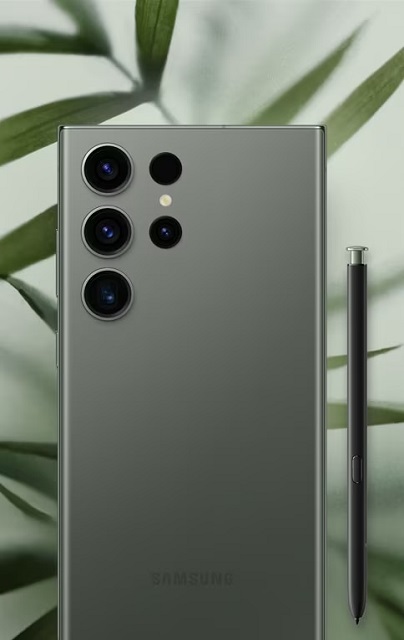
Whereas the S23 Ultra is quite similar to the Galaxy S22 Ultra. It comes with individual rear cameras, a squared-off profile, curved sides and a punch-hole selfie camera. Besides, it has a default S Pen slot that allows you to draw. Moreover, ith the help of this S Pen, you can take handwritten notes on a pocket-sized device. This Galaxy version is available in four colours: Phantom Black, Cream, Green, and Lavender. But if you order directly from Samsung, you can get another four colours. If it comes to talk about iPhone 14 Pro Max, it comes in Space Black, Deep Purple, Silver and Gold color.

The Galaxy model comes in a steeper curvature radius of the side frame, using which you can hold the mobile with one hand and operate it easily. It also comes with an S Pen stylus silo for doodling.

Display comparison:

The iPhone model is equipped with a 6.7" screen, whereas the screen size of Samsung Galaxy S23 Ultra 5G is 6.8 inches. Whereas the Pro Max comes with an OLED Screen type. The iPhone model has a display density of 460 PPI, whereas the Samsung model has a display density of 501 PPI. Besides, the iPhone 14 Pro Max has a 19.5:9 aspect ratio. Whereas for this Samsung model, the aspect ratio is 20:9.

On the flip side, Apple has melted the dynamic refresh rate benefit that the Galaxies did by introducing 1Hz-120Hz range for the iPhone 14 Pro models. Therefore, we can say it is a draw in the display department.

Memory comparison:

The Samsung model has a 12 GB RAM which is advantageous for playing games whereas the iPhone model has 6 GB RAM. The S23 mobile has Internal Memory of 256 GB, whereas the iPhone model comes with 128 GB internal memory. Each device includes a Memory Card Slot.

Camera:

Camera hardware is another area where the galaxy model becomes unique, and there is no competition. The biggest upgrade of the Samsung model is a new custom 200MP ISOCELL HP2 main camera sensor with 0.6-micron pixels.

The iPhone version has a 48MP sensor, but it can't match the resolution that S23 Ultra can produce. Its pixel size goes to 1.12 microns in a low-light environment. Therefore, it is possible to capture 50MP photos with enhanced light sensitivity. The S23 Ultra can offer a 2.4-micron binned virtual pixel at night. Hence, it combines 16 pixels into one to snap a photo at 12.5MP. As a result, no matter how much light is there - you can capture sharp images.

iPhone 14 Pro Max vs. Samsung Galaxy S23 Ultra Performance and Software:

Samsung Galaxy S23 Ultra
As per benchmarks, the Snapdragon 8 Gen 2 chip appears to be on par with the Apple A15 processor of iPhone 14 though it is clocked lower. The Samsung version gets a custom Snapdragon 8 Gen 2 which we know as the Mobile Platform for Galaxy. It's clocked higher than the stock 3.2 GHz version.

As the iPhone's 5G modem is a generation behind Samsung's Ultra connectivity, these are the new Qualcomm X70 5G modem features:

  • Snapdragon X70 includes features like Qualcomm 5G AI Suite, Qualcomm 5G Ultra-Low Latency Suite, Qualcomm 5G PowerSave Gen 3 and 4X sub-6 carrieraggregation. 
  • It is the only 5G modem-RF system family that can support each commercial 5G band from 600 MHz to 41 GHz. Thus, it can make OEMs flexible so that they can design devices which support global operator requirements.

Battery life and charging speeds:

If it comes to talk about battery life, the iPhone 14 Pro Max does not have any comparison. However, the S23 model's battery life gets a 20% bump due to the use of a new Snapdragon 8 Gen 2 processor & LTPO OLED panel generation. The iPhone model managed to outrun the S22 in battery benchmark tests in a few cases. But Galaxy S23, the successor of S22, experiences a tough time surpassing the iPhone's endurance in these tests.

The charging speed of the Galaxy S23 Ultra makes it stand out in the market. You can charge a 5,000 mAh battery pack within about an hour using its 45W charger. But the iPhone 14 Pro Max needs almost two hours to topping up a smaller unit at 27W maximum.

Outlook:

Outlook is another key factor that we need to elaborate while discussing the topic: Samsung Galaxy S23 Ultra vs iPhone 14 Pro Max. We all know that the iPhone models are excellent, whereas the Samsung model still needs to undergo some tests to prove its strengths. The iPhone model is expected to retain its quality regarding performance and battery efficiency. However, the Samsung model can beat the iPhone continuously on charging speed, display size and resolution.

The Bottom Line:

This year's flagship of Samsung can provide an improved ergonomic design with an integrated S Pen stylus. Besides, it comes with a few upgrades, like a new 4nm processor. In the future, Samsung may bring its A-game for countering this iPhone model's camera and its brightest phone display. In addition, the Galaxy model includes the largest camera sensor on an S-line phone. Besides, it has the latest 5G modem from Qualcomm, which is unavailable to the iPhone.

Saturday, January 21, 2023

iOS 16.3 Update

iOS 16.3 Update

Apple released its most significant update of iOS 16.2 on December 13. Later on December 14, its developer beta (16.3) was released. iOS 16.3 update is the new update that enables you to use physical security keys using your Apple ID. In addition, it makes Advanced Data Protection available worldwide. Besides, the update makes your device compatible with the new 2nd-generation HomePod. It also gives you a few security enhancements and bug fixes.

People can enjoy the End-to-end encryption feature for several other iCloud data categories such as Photos, Voice Memos, Notes, device backups, messages backups, etc. Moreover, iOS 16.3 is compatible with the new second-gen Homepad, Apple ID security keys, and the unity wallpaper.

According to the press release by the company, people will get the Apple watch band and Apple software update very soon. Previously iCloud advanced data protection was accessible only to U.S. Apple users. It features new Apple ID and iCloud security keys, which can provide an additional safety layer to users' data.

As per a media report, the company could launch other updates like iPadOS, watchOS 9.3, macOS 13.2, and tvOS 16.3. However, it is expected that the new update will include a display bug on iPhone 14 Pro Max.

What is the iOS 16.3 release date?

On December 14, the first beta was released. But it was January 18 when the release candidate went out to beta testers. However, it is expected that a wide release will be done on January 24 or 25.

iOS 16.3 New features:

You can get bug fixes & security updates in each iOS release. But these features are the most significant ones that are included in this iOS 16.3.

Advanced-Data Protection: While it is released for only U.S. users, it is said that people worldwide can use this feature in iOS 16.3. However, there is no mention in the release notes regarding this.

Physical security keys for Apple ID:

FIDO-certified physical key lets you secure your Apple ID. You can use these security keys for many reasons. Moreover, this technology is helpful in improving iPhone security. However, in iOS 16.3, these replace the passcodes sent to the iPhone when you log in to another device.

These keys are hardware-based tokens used for two-factor authentication. It is security's "gold standard" that contains a password and at least other factors like hardware key or biometric — Face ID or Touch ID. Apple is a member of the FIDO Alliance, whose aim is to have two-factor authentication with these keys.

Support for HomePod (2nd gen):

This new update makes your device compatible with the 2nd-generation HomePod. If you are a beta tester with an Apple HomePod, you can see new messages when you share music, podcasts, or phone calls over to the speaker using Handoff. You get to know about the working process of HomePod from the messages.

A message will say you to bring the iPhone closer to your HomePod to share audio over HomePod or to see the controls. On the other hand, another message will instruct that it is possible for you to bring your iPhone closer to your HomePod again later to share music or see the same controls.

Black Unity collection: The company comes with a new Apple Watch face celebrating Black History Month (February).

Apple Maps to find nearby parking options:

Apple Maps can help you in finding nearby parking options to get directions to a spot. If you want to go somewhere, click on More (...) and Parking thereafter. Thus, you can see a SpotHero which is an online service used to find, book, and pay for a parking area at any nearby garage. It is possible to reserve a spot via SpotHero. But people of some selected towns can only access the feature.

New ways to use Emergency SOS via satellite:

Apple introduced this feature at its 2022 event in September. With the help of the new beta software, you can use the service in new ways on iPhone. The Call with Hold and Release has replaced the Call with Hold option in iOS 16.3 beta 2. Enabling Call with Hold and Release allows the users to hold the side button and a volume button so that you can initiate a countdown and an alarm. Release the button after completion of the countdown. Then, the iPhone will call emergency services automatically.

Before Call with Hold, if you hit the side and volume buttons, you can bring up the Emergency SOS call slider first. Holding buttons continuously can start the countdown, and an alarm would go off. Once your phone completes the countdown, an emergency call will be made by your mobile.

Call Quietly in Emergency SOS is an option, enabling which prevents your phone from flashing or making any alarm sound when you make any emergency SOS call.

How to install the public iOS 16.3 Beta:

You can make this available within a day or a day after the Developer Beta's release. Hence, you should know that Developer Beta is especially for registered developers due to which you can't participate. However, the company makes the Public Beta. Therefore, users must try it. Several users wait to test out iOS 16.3 and its features. In such cases, you should ensure that you are enrolling in the Public Beta by going through these steps.

  • If you want to include yourself in the program, sign up on the Apple Beta page. After that, you should register yourself with Apple ID on the iPhone. 
  • Now, your job is to log in to the Beta Software Program. 
  • Tap on Enroll on the device you use. Did you sign up already in the previous year? If yes, then uninstall the earlier Profile. Next, you should enroll again to try the Beta Program. 
  • Navigate to beta.apple.com/profile on the device you use. 
  • Next, your task is to download the Profile and install it. If you don't see the notification for the same, move to Settings, General, VPN, and device management. Now, you have to click on the iOS 16 Beta Profile. 
  • After that, you need to restart the device. Head toward Settings, General, and Software Update after that. You should download the Beta version and install it on your device.

How to install the iOS 16.3 Developer Beta:

In this case, you need to know that iOS 16.3' every stage of the development cycle first will be rolled out to the developers. After that, it will be rolled out to the tester. If you are a developer, run this iOS 16.3 version to test your apps against iOS's most updated version.

Check first if your device supports this. You must register as an Apple developer hence. So, to join the Apple Developer Program, you should pay $99 a year.

You can install the iOS 16.3 developer beta in the following steps:-

  • If you use the Safari browser on iPhone or iPad, your first job is to head toward developer.apple.com. Then, you need to log in with your Apple ID. 
  • Now, you should move to the Downloads section, which is available in the left-hand menu. After that, you need to scroll the page down to iOS 16 or iPadOS 16 beta and click on Install Profile. Then, you have to tap on Accept. 
  • After that, you have to open the Settings application. Tap on the Profile Downloaded option at the display top once you see it. But if it is not visible, head toward General, VPN, and Device Management. Then, you should click on the iOS 16 or iPadOS 16 beta profile. 
  • After that, you have to click on Install, which you can see on the top right side, so that you can install iOS or iPadOS 16 beta profile. 
  • Now, you need to go through the consent form of the developer and give your consent. Hence, you need to assume that you are okay with the terms. 
  • Now, you should restart the iPhone. 
  • Head toward Settings > General > Software Update. You can see the iOS or iPadOS 16 beta there. Thereafter, you should click on the Download option and Install. 
  • Now, you should wait until the iPhone completes downloading the update. You should click on Install when prompted.

If you perform these steps correctly, the iPhone should run the iOS 16 beta.

Risks and precautions:

All betas are test versions of upcoming software, meaning they will add more features in the finished product. So, fixing bugs and other issues will be required during the development procedure.

Conclusion:

According to Apple, the Unity 2023 watch face needs the Apple Watch Series 4 or later version in watch OS 9.3, iPhone 8 or later and iPhone SE or later. Users can enjoy the new Unity iPhone wallpaper in iPhone 8 or later in iOS 16.3. However, you should know that the previous version, iOS 16.2, was released on July 11 last year.

Frequently Asked Questions:

Q. What are the new updates in iOS 16.3?

Security updates, support for new second-gen HomePod, Apple ID security keys, unity wallpaper are the new updates in iOS 16.3.

Q. How do you get iOS 16.3 Beta?

If you are willing to install iOS 16.3 developer beta 2 on your iPhone, you should do the following:

  • Your first task is to open the iPhone Settings and then go to General. 
  • Now, you need to choose Software Update. 
  • After that, you have to click on Download and Install. 
  • Now, you should put in the iPhone passcode.
  • Then, you should go through the on-screen instructions. 
  • As soon as you download the file, you need to click on the option: Install Now.

Q. Is iOS 16.3 out?

As per the report, the official version of iOS 16.3 will be released on January 24, 2023 probably.

Friday, January 20, 2023

Apple Unveils MacBook Pro with M2 Pro and M2 Max

MacBook Pro with M2 Pro and M2 Max

On 17th January 2023, Apple announced the new 14- and 16-inch MacBook Pro with M2 Pro and M2 Max. If you are a pro user, you can get improved battery life and better power-efficient performance from the next-generation pro silicon of the company. The most efficient chip in the world is M2 Pro & M2 Max, used for a pro laptop and lets the model handle important tasks. While the device is faster by up to six times than the Intel-based MacBook Pro, and Color grading that is faster by up to two times.

The battery life of the MacBook Pro is up to 22 hours, and it is assumed to be the longest battery life in a Mac. The M2 Max model comes with up to 96 GB unified memory. 

Here, we are going to mention a few of its unrivaled features:

  • Liquid Retina XDR display, 
  • Great connectivity, 
  • 1080p FaceTime HD camera, 
  • six-speaker sound system and studio-quality mics.

The combination of these features with macOS Ventura offers a groundbreaking MacBook Pro user experience.

Performance with M2 Pro and M2 Max:

The model can transform pro workflows across art, science, and app development using M2 Pro and M2 Max. If your Mac model is Intel based and you want to upgrade this, you can experience an improved battery life, connectivity, performance, etc. The M2 Pro includes a 10- or 12-core CPU (up to 8 high-performance and 4 high-efficiency cores).

With M2 Pro on MacBook Pro—

Compared to the Intel-based MacBook Pro, animations in Motion & rendering titles are up to 80 % quicker, but against the old generation, the number is up to 20% faster. The speed of compiling in Xcode is up to 2.5 times more than the Intel-based MacBook Pro. Besides, its speed is around 25% more than the previous generation.

Additionally, the speed of Image processing in Adobe Photoshop is up to 80% faster compared to the Intel-based model, whereas around 40% faster compared to the previous generation.

For MacBook Pro with M2 Max, you can find a GPU with up to 38 cores used to push workflows to the extreme. Thus, it can provide up to 30% improved graphics performance over M1 Max. However, M2 Max comes with the next generation's 12-core (eight high-performance and four high-efficiency cores) CPU.

With M2 Max on MacBook Pro—

The rendering effect is up to six times faster in Cinema 4D than the fastest Intel-based MacBook Pro, whereas it is up to 30 % faster compared to the earlier generation. Besides, the Color grading in DaVinci Resolve is around two times faster than the quickest Intel-based MacBook Pro. In addition, compared to the old generation, it is up to 30% faster.

Enhanced Connectivity:

Wi-Fi 6E3 is a new feature that offers fast wireless connectivity in MacBook Pro. The model features more advanced HDMI making this compatible with 8K displays (up to 60Hz) and 4K displays (up to 240Hz). These are new abilities on versatile connectivity options such as three Thunderbolt 4 ports for high-speed connection to peripherals, an SDXC card slot, and MagSafe 3 charging.

macOS Ventura:

People can get improved performance & productivity with macOS Ventura. It includes a Continuity Camera which can bring video conferencing features such as Desk View, Center Stage, Studio Light, etc., to Mac. You can begin a FaceTime call using the Handoff in FaceTime feature on your iPhone or iPad and pass over this to Mac, or vice versa. Stage Manager tool can organize apps and windows. Therefore, while you can maintain your focus on your job, you can keep your eye on everything in one glance.

Mail and Messages are always a better option, whereas Safari is called the quickest browser on Mac worldwide. You can make another photo library and share it among family members ( up to six) using iCloud Shared Photo Library. In addition, the new Freeform app can offer a flexible canvas making it more productive.

Pricing and Availability:

  • People can order the new MacBook Pro models with M2 Pro and M2 Max from January 17 on apple.com/store. While it is also available in the Apple Store app, it is available in twenty-seven nations, including the United States. From January 24 onwards, these become available in Apple Store locations and Apple Authorized Resellers. 
  • These models will be available in countries like Australia, China, Hong Kong, Japan, Macau, New Zealand, and Singapore from February 3. 
  • The price of the 14-inch model will start at $1,999 (US), whereas the price for education is $1,849 (US). Besides, the starting price of the 16-inch model is $2,499 (US), whereas, for education, it is $2,299 (US). You can get configure-to-order options, extra technical specifications, and accessories at apple.com/mac. 
  • If you purchase a Mac from the company, you can get a free Online Personal Session with an Apple Specialist. You can also get to know how to make the new Mac work. 
  • Apple Trade In enables you to trade in your current computer and get credit toward a new Mac. You can go to apple.com/shop/trade-in to know your device's value
  • AppleCare+ for Mac can offer support technically to the experts. Also, the company can give extra hardware coverage like numerous accidental damage coverage, every subject to a fee. 

Conclusion:

The main target behind designing the MacBook Pro is to decrease the environmental impact. It is made of recycled materials like aluminum in the enclosure, rare earth elements in all magnets, tin and gold in many printed circuit board plates. It has 35% recycled plastic or more than that in its components. Additionally, it can meet the company's high standards for energy efficiency. You should know that the model does not contain any harmful substances. Apple aims to remove the use of plastic in its packaging by 2025.

We are glad to know that 97% of its packaging is fiber-based. The company is carbon-neutral for global corporate operations and plans to be 100% neutral by 2030 across the complete manufacturing supply chain which indicates that it will have net-zero climate effect on manufacturing, assembly, transport, customer use, charging, recycling, and material recovery.