Thursday, January 11, 2018

Intel, ARM and AMD Chip Scare: What You Need to Know

chip
In recent news Google’s team Zero team has come out with a report that shows that hackers could potentially get through to your personal data through a fundamental fault in chips.

Coming at a not so great time for the industry with the consumer electronics trade show only a few days away, this scare about a security flaw has put the world on pins. With 1.5 billion users having laptops and desktop computers, the security flaw is far reaching and could be potentially very damaging.

What is the security Flaw about? 

Researchers have discovered that flaws in CPUs or to be more precise the chips that do most of the processing, seem to have gaps that allow or could allow hackers to gain access to a user’s most private data such as credit card passwords. These chips that are most susceptible to hacking are the Intel, ARM and AMD chips.

The security flaws are mainly of two categories. Meltdown is one of the security flaws that affect desktops, laptops and internet servers running on an Intel chip. The more far reaching of the security flaws is spectre that could affect smartphones, tablets as well as PCs running on any of the three chips that is Intel, ARM and AMD.

Also coming under the purview of the security flaw is any computer or device connected to the cloud, too can be susceptible to an attack.

How serious is this Security Flaw to be taken? 

The security flaw is no doubt far reaching, however, there have not been any reported cases of people taking advantage of this security flaw at present.

This is not to say that with the news being divulged of such a security flaw, there won’t be people out there who are going to look out for loopholes to get to user’s personal data.

The most important thing for users to do at present is to ensure that their systems are up to date with the latest update and any third party security packs should also be updated at the earliest.

Safeguarding against the Security Flaw: 

The news about the security flaw was already known to tech experts at least 6 months prior to when the issue has come out. This has given them ample time to develop patches and fixes for the security flaw.

All users no matter what the device should install the latest update as soon as possible to protect their data from any potential threats.

Effects of downloading the patches: 

Downloading the patches, as researchers have discovered, will likely slow down performance by at least 30%. Intel has rubbished the claims saying that they are exaggerated and any performance slowdown will be mainly work related.

With the CES coming up shortly, researchers are worried about how news of the security flaw is likely to affect sales of products on display.

News of the security flaw has revealed a fundamental flaw in the way that chips are made which will now require a complete rethinking of how chips are to be developed.

Tuesday, January 9, 2018

How to Customize Your MacBook: More than 15 Great Ways to Do It Quickly

MacBook
For years, Apple has evolved towards an increasingly minimalist user interface. Inexactly, macOS works especially well, but I could make use of some modifications. By customizing some settings you can make MacBook work even better for you.

If you are wondering if there are great ways to customize your MacBook, then this is the article that you must submerge. You can quickly modify the look and feel of your Mac. Learn how to modify your Mac, adjusting your preferences to your personal taste.

How to Quickly Customize the Appearance of Your MacBook


It's a good idea to customize a MacBook, to make it yours. There are even websites devoted entirely to thematizing MacBook. Instead of using third-party tools to get different appearances, I'll show you what Apple already provides.

In this tutorial, we will be using the current version of the operating system, macOS 10.12 Sierra. You will find that the principles are the same for whatever version you are using, although with slight differences. Now let's play with some great ways to customize the Mac's visual settings.

1. Automatically modify the screensaver every few hours, or days


When it comes to computer metaphors, I've always struggled with the concept of putting a screensaver on the desktop. I guess changing the housecloth does not have the same effect in MacBook.

To change the screensaver, go to the System Preferences> Desktop and Screensaver. You can also reach the same site by pressing the Apple symbol, in the upper left of the menu bar, or by pressing Command / Space to open Spotlight and enter Desktop to find the preferences.

Once you have selected a screensaver image, you will have the option to change it automatically in MacBook. You can also configure how often it will change. Click on the box to place a mark in the Change Image box: and use the drop-down menu to select the desired interval.

If you prefer, it is possible to make the images on the desktop background show in a random order. Press the check mark to activate the Random Order.

To keep things organized, use a specific folder in iPhoto to save the images from the desktop background in MacBook. The Desktop and Screensaver panel is always kept up to date, so you will not have to worry about adding a new image when you download it.

On the other hand, you can use any folder on the MacBook, as long as it contains more than one image.

2. Use Active Corners to Show Screen Savers and Other Things


From the MacBook Desktop and Screen Saver preferences panel, press the Screen Saver tab to see the options for them. Down on the right there is a button called Active Corners ...

Active Corners is a macOS system feature that allows you to use the four corners of the screen to invoke certain actions, as indicated by its name. It could be to launch a screensaver, open LaunchPad, the Notification Center or anything else.

Move the mouse to the defined corner to activate the feature.

3. Add Separators to the Dock


Your MacBook dock may end up crowded with a host of application icons. If this happens to you, adding a space between the icons makes sense.

The spacers added by this command are invisible "tiles" that can be easily removed, if necessary, by dragging them from the dock to the outside.

To enable the empty tile, open the Terminal and enter the following command:

defaults write.com.apple.dockl persisent-apps – array-add '{“tile-type”=”spacer- tile”;}'; killall Dock

Once the command has been executed in MacBook, the dock disappears for a moment and it will be loaded again with an invisible tile to create the space.

The invisible tile can be dragged along the dock to place it where you need to create more space between icons, or drag it from the dock to the desktop to eliminate it if you no longer need it.


4. Change the Color Scheme of the MacBook OS System


If you prefer to highlight the text so that it has a different color than the default blue, open the System Preferences> General and change the Color of Enhancement: to another color.

Along with the eight colors of the menu, you can use the Other ... option to select any color from the selector.

There is another Appearance option here that changes the buttons, menus, and windows of all applications to a more monochrome option called Graphite. Blue and graphite are the only options, so if you like a very hard look and without those colorful buttons to close, minimize and increase located in the bars of the windows, they will be your preferred options.

5. Add Extension to the MacBook Dock, Hide it and Change its Position


By default, the Mac dock does not jump as you may have seen on other MacBook. That's because the increase is not enabled.

To enable it, press the Apple symbol, at the top left of the menu bar, select Dock, and press Activate Enlargement.

This menu also gives you the possibility to hide the dock, which is useful to maximize the screen space in your MacBook, especially in small screen laptops. When it is hidden, you can show the dock by moving the cursor to the part of the screen where it resides.

You can change the location of the dock and place it on the left or right side of the screen. The appearance of the dock will also change if you move it to the sides; its appearance is more two-dimensional and reminiscent of the one I had in OS X Tiger.

How to Customize the Menu Bar on Your MacBook


Many people do not get all the advantages of using the menu bar. Some applications use extra information, but there are other really creative things you can do with the information there. Let's take a look at some great ways to customize the Menu Bar on your MacBook.

6. Add Seconds and Date to Time


It is possible to display more than just the time in the menu bar. Click on the current time and select Open the Preferences panel "Date and Time" to expand them. In the main tab you will find a place to adjust the Date and Time.

If it is correct, go to the Clock tab. Change the time options from Digital to Analog, and activate to your liking the boxes Show the time with the seconds, Blinking of the separators, Use clock of 24 hours, Show the indicators of a.m. /p.m., Show the day of the week, Show date in the menu bar and Announce the time in quarter intervals, half hours or full hours.

MacBook OS has many great hidden options to show the time. It is useful to have the date in the menu bar, and the seconds can be useful if you want to be punctual. Do not forget that you can change the format of the date in the Language and Region panel. I'll talk about this later.

7. Add the Battery Percentage and Life Time


If you have a MacBook and the battery indicator in the menu bar is only an icon, you will need to change this to see more information. When it's plugged in, press and select Show Percentage to give you a reading of the current charging status. Then unplug the charging adapter from the MacBook and test that the indicator works as expected.

Note: There used to be an option to show how long the battery could last with current usage, but it has been removed from Mountain Lion. If you are using an earlier version of OS X, press the battery icon and look for this option.

In any case, there is a small utility called Battery Time Remaining that tells you how much time it will take to deplete it. It is available on GitHub.

8. Change the Action when Inserting a CD or DVD


You may not always want a DVD player to open when you insert a video disc into your MacBook, if you still have a reading unit.

To change this behavior, open the CD and DVD panel in the System Preferences. Click on any function you want to modify and select "Open another application ..." Or, to completely deactivate the function, select Ignore.

You can even Run a Script ... if you have a custom function.

9. Adjust Spotlight Searches and How They Are Ordered


Maybe you have some private files that you do not need to list when you do searches. If so, you can exclude them from the Spotlight query system. Here is how to do it:

Open System Preferences in your MacBook and click Spotlight Click on the Privacy tab

Press the + button to add a folder or a whole disc that you do not want to be shown You can also adjust the way in which Spotlight displays the search results. On the Search Results tab, deselect any category you do not want to see, or drag them to sort them in your preferred order. Here you can also change the keyboard shortcut for Spòtlight.

10. Change the Default Dictionary in Your MacBook


The Apple Dictionary application is one of the most useful tools on the MacBook. It is simple and does your job well.

Although, if you're like me, you'll like to look up words in a real English dictionary: the British. To enable an alternative language in the app, go to the Preferences window and check the box you want to have in the main window.

There are ten dictionaries and thesauri included in the MacBook, and two of them are more resources than dictionaries, the Apple dictionary and Wikipedia.

11. Change the Application Icons on Your MacBook


If you are really determined to customize your MacBook and do your things, it is even possible to change the icons of the applications. There are utilities for this, but the process of changing the icon of an application manually on your MacBook is quite simple.
  • Select the .png or .jpeg icon and open it with Preview. Press Edit, Select All, then copy the selection. The usual .png files do not work because they do not always have transparent backgrounds.
  • Find the application you want to modify, select it, and click Get Info. You can also press the key combination Command-I.
  • It's the small icon in the upper left part of the application and Command-V to paste the new icon.

To delete a custom icon, select the small one in the Get Info window and press Undo on the keyboard.

Manually: This technique works for most applications, but may not work for Apple owners.

12. Make the Finder Open in a Different Folder to All My Files


The new Macs display the All My Files directory by default when you launch the Finder.

Personally, I do not like this setting. Fortunately, there is a way to change it.

Go to the Finder Preferences in MacBook and select the General tab. Choose a drop-down menu folder below The new Finder windows show. Press Others to use any folder on your hard drive.

13. Adjust the Regional Variations on Your MacBook


If you live in the United States, the date format will be foreign to the rest of the world. Therefore, having a preference to change the format as an ascending format DD-MM-YYYY or descending YYYY-MM-DD makes sense. The latest is an ISO standard. You can order spreadsheets properly with the ISO format, for example.

You do not have to use the date format in the same way as the rest of the USA. You can modify this and other things, from the Language and Region panel of the System Preferences. Once there, click on the Region tab. Here is a list of what you can do:

Make the week begin on a given day - You might prefer that the calendar week start on Monday. Press the drop-down menu next to First day of the week, then select the day on which you want the week to start.

Change the Date Format - Press the Customize button next to the Dates section and arrange things as you like. Apple makes things extremely simple so you can drag and drop the values and sort them as you like. There is even an option to add the era, d.C.

Change the Time Format - milliseconds are part of the time. Apple leaves it to your choice on the Customize screen in the Hours section. Again, it is a drag and drop process.

Modify Currency Separators and Decimal Characters - Some people like decimals separated by commas and semicolons. If that's you, click Customize below the Numbers section and change things. You can change the values to any character.

Change to a New Currency or Unit of Measure - There are options for the currency and the units of measure you are using. There are lots of coins, but the units of measurement are only offered in the UK, US or Metric. The UK is not usual since it uses a mixture of imperial and metric measures.

14. Organize Your Folders Automatically


It is annoying to see a folder completely disfigured due to bad organization. The Finder has settings for this kind of thing, and they are located in the toolbar.

Press the button that looks like a small list of icons, as shown in the screenshot below, and then select the organization method that works best for you. Name is the best because you will always find things on your site.

Although you can do anything, from Type to Size and Label. On the other hand, drag things out of the grid to mess up a bit.

15. Remove Desktop-mounted Discs


Maybe you do not want to see the CD or an external hard drive cramming your desktop.

To deactivate it, open the Finder Preferences and deselect one of the options Show these items on the desktop in the General tab of your MacBook.

This will eliminate some unnecessary things from the desktop.

16. Bring the Status Bar Back


There used to be a status bar to the bottom area of the Finder, which showed the size of a selection and number of files in a folder, as well as other useful information.

By default it was deleted in OS X 10.7 Lion, but you can always recover it with a keyboard shortcut: Command / (Command + Line Oblícula).

You can also do it by clicking on the View menu and selecting Show the Status Bar.

What Tips to Customize the MacBook Do You Have?

In this tutorial, we've shown you how to customize your MacBook, better organize things, change the default dictionary, reorder Spotlight results, show different desktop backgrounds and recover hidden functions that were in previous versions of OS X.

Although it is only an introduction. There are many more customization options for the Mac, such as drastically changing the appearance of the dock by applying a theme. The same can be done with the rest of the MacBook OS, although it does not take a while to get things to be perfect.

Saturday, January 6, 2018

ConnectSense Debuts New HomeKit-Compatible Smart In-Wall Outlet

ConnectSense
If you want to have a greater command over your home environment and also control and monitor the power usage in your home, then ConnectSense Smart In-Wall outlet will help you do just that.

The ConnectSense Smart In-Wall Outlet is an addition to Apple’s HomeKit technology which will be available later in the year 2018. At the end of 2015, ConnectSense had launched their original external Smart Outlet which was compatible with the HomeKit.

ConnectSense Smart In-Wall Outlet


The ConnectSense Smart In-Wall Outlet can be installed in your home just like any usual outlet. It is designed to blend in with the room décor as well as provide all the benefits of HomeKit control. The ConnectSense Outlet makes any product smart and also provides power monitoring and plug detection features. Any of the devices plugged in the ConnectSense outlet can be controlled by the ConnectSense app, the HomeKit app, built-in touch controls or your voice using Siri.

It comes with two WiFi connected outlets that can be controlled and monitored individually. When a device has been plugged in, the outlets have plug detection to sense it. All your plug-in devices like fans, lights, heaters, televisions can be controlled and monitored from your iPhone or iPad. You can control your home settings with customized scenes. If you want a scene to turn off the lights, lock your doors, set the room to the desired temperature, all of this can be done in one simple step.

It has two buttons on the right to turn on or off each outlet individually. On the left there is a 2.4 amp USB charging port for quick charging of your iPad, iPhone and other devices. With the help of the Energy monitoring, you can also see the power usage of the various devices via an app on your iPhone or iPad.

In addition to using the ConnectSense Outlet in the house, the Smart In-Wall Outlet will also be able to function in commercial establishments such as offices, airports and various other places using both the 15A and 20A options.

In the box, you will get the ConnectSense Smart In-Wall outlet containing the WiFi Dual Smart Plug, an 8-Digit pin code and a Quick Start Guide.

Installing ConnectSense Smart In-Wall Outlet


When you plug the In-Wall Smart outlet into the wall, click on the WiFi settings on your iPhone or iPad. At the bottom, you will see a sub menu ‘Set Up New Device’ showing the ConnectSense outlet name. By clicking on it, the Smart outlet is automatically connecting to the WiFi network without actually entering the WiFi password. Install the ConnectSense app from the App Store. You need to add your first Smart Outlet device and it should automatically find it. Enter in the 8-digit pin code that comes in the box along with the Smart Outlet plug. The Smart outlet will be installed.

The price of this device has not been announced, but it should be available for purchase later this year.

Thursday, January 4, 2018

Apple Announced GymKit in the Summer

GymKit

Apple watch and GymKit

The sport, lead a healthy life and training is increasingly fashionable, but Apple knows that more than one is hard to go on their own to the gym, and more when you have no one to tutor you or help you prepare a Exercise table best suited to your physique and activity. Since its inception with the Apple Gymkit, many people were curious that could not resist the temptation to get one and start to try all the benefits that it offered.

But the following had to be kept in mind: the iWatch has no GPS, no audio input, and the connection to the mobile is made via Bluetooth 4.0. But not only that. An iWatch without an iPhone is practically unusable, since the watch could be said to be an extension of the phone that allows you to receive notifications on your wrist of those applications that you have installed on your iPhone and that allow connectivity with the watch.

That is why with the passage of time, and due to the strong dependence that exists between the clock and the telephone for its optimal use, many have been losing their interest or seeing their utility increasingly reduced.

However, this is something that has not gone unnoticed for Cupertino, and that is why in the Keynote of this year 2017 and with the advance of watchOS 4, apple decided to make the most of the health and training.

For this reason, in its advance of presentation Apple has included several improvements, such as very striking elements in the training app with the idea of offering the most practical information for users throughout the day. But something that draws much attention to the rest is the update of the app train much improved jointly with Apple Gymkit, a platform with technology that will offer users training connected with cardio equipment of gyms.

This is what Jeff William, COO of Apple, said:


"The Apple Watch is the perfect device to lead a healthy life and is now smarter than ever thanks to watchOS 4. We have designed a truly individualized experience with the most intelligent Activity and Training apps, the Siri sphere that shows the information that you need at the right time and, in addition, we will offer users their favorite music easily. "

But what is it and how does Apple Gymkit work?


Apple Gymkit is a specific development kit for gym machines that will allow both the iWatch and the machine to share data of the user. With Apple Gymkit, customers who use their favorite gym machine can link their Apple Watch directly with treadmills, ellipticals, indoor bicycles or step machines from manufacturers around the world such as Life Fitness and Apple Gymkit with a single touch. And how is this achieved? Through NFC technology.

This means that, just by bringing the iWatch closer to the area specified in the fitness equipment and through the communication of the NFC chip between the machine and the clock, our data will be recorded and an automatic training will be started on the clock, in accordance with the training that we programmed in the machine. Both devices, machine and clock, will begin to exchange data of the exercise in real time (calories, distance, speed, raised floors, inclination and rhythm).

Of course, some questions arise about the operation and the start-up, but we will have to wait until its deployment in the autumn of this year to dispel any doubt. But what is clear is that Apple is strongly committed to the sport to get more juice to Apple Gymkit and in turn encourage users to lead a more active life.

Wednesday, January 3, 2018

5 Ways to Handle Spam Text Messages

Spam

When you hear the notification that you have received a text message, you probably want to see who it is from right away. It could be a loved one saying hello or a coworker relaying important information about work. You likely aren’t expecting a spam message congratulating you on winning a prize or soliciting you to confirm financial information. These messages aren’t just annoying—they can be dangerous, too. You are savvy enough not to fall for these pranks, but you might not know what to do in order to get the messages to stop.

There are a few different ways to handle these messages and prevent these messages from becoming a consistent invasion. Consider the following five ways you can deal with spam text messages and reclaim your phone from predatory scammers. You should not have to deal with unwanted texts, and with these tips, you will not have to.

Register on the Do Not Call List

One of the first things you should do to ensure that you minimize unwanted texts and calls is register your number on the National Do Not Call Registry. This list is managed by the Federal Communications Commission and functions to alert solicitors that you should not be contacted. By law, cold callers must reference the list to ensure that they are not contacting anybody who appears on it. In recent years, the FCC expanded the function of the DNC list to include an opt-out option for text messages, too. You can register your number to prevent unwanted texts and calls.

Install a Filter App

Unfortunately, many spam calls and messages do not abide by the laws requiring that numbers on the DNC list not be contacted. You might find, in fact, that there is very little difference before and after you register on the DNC list. Some cell phone users have found that an SMS spam blocker is a more effective solution to the problem. There are a number of different apps you can install that fulfill this purpose. SpamHound, for example, works to filter unwanted texts and allows users to specify specific phrases to be omitted from one’s inbox.

Report Spam to Your Carrier

In addition to installing an SMS spam blocker on your phone, you can report the spam directly to your carrier. Cell service providers such as Sprint, T-Mobile, Verizon and AT&T will all typically accept your complaint and make note of the spam. This is useful, too, given the fact that you are likely being charged for every unwanted text message you receive. You should not be financially liable for these unwanted communications, so notifying your carrier of the issue may help you get the charge removed from your bill. You can also request that your carrier block the number.

Block Offending Numbers

Blocking a number is, in fact, often the most effective way of dealing with spam messages. You can contact your carrier to request this, or you can often log online and complete the task yourself. Most carriers allow you to create an account and control who can communicate with you. On some phones, you can even complete a block directly on the interface. If you consistently receive spam messages from several numbers, it is best to prohibit them from contacting you. This also ensures that you will not be charged for any attempts at calling or texting from the number.

Consider the Message Carefully

Most internet-literate people can tell when a message is spam. Any unexpected prizes or strange financial emergencies are typically a ploy to gain personal information that can then be sold or used against you. According to the Federal Trade Commission, the goal is often identity theft. To this end, many of these messages are often disguised as notifications from your bank asking you to enter confidential information. Because of this, you should always carefully read messages that claim to be from a financial institution. Of course, some of these will be legitimate, but you should err on the cautious side.
Spam texts are not just a nuisance. They are often a risk, too, and it is imperative that you take care of them rather than simply ignoring them. Luckily, there are many ways to do this, but you should always be careful when you receive a message from a number you do not recognize.

Purpose and Advantages of a Docking Station

Docking
Docking stations are a fundamental component of the modern computing world. The versatility that we all enjoy from a multiplicity of computers, phones, and peripherals would be lost if there were no way for these devices to talk with each other. It is essential to provide components that permit convenient interface between differing devices, especially when recharging batteries or downloading important data. A well maintained docking station provides everything the end user will need to keep their devices functioning smoothly and in harmony with each other.

What To Look For in a Docking Station

Mechanical efficiency and resiliency are among the most important issues faced by a docking station, especially when they will be dedicated to devices that are in constant daily use. The peripheral should mate securely with the station and release smoothly. It should be so clear and intuitive in its operation so as to be practically impossible to misuse. The electrical connection should be grounded to prevent shorts and other electrical faults. The entire package should be as well designed and engineered as possible so as to last for tens of thousands of plug ins and unpluggings. USB-C connections are standard for the electronics industry, so the docking station should support them. No matter what specific form the docking peripheral on the station may have, it should output to USB-C. Both power and data should be transferred by the docking station.

Purchasing Docking Stations

Fully completed docking stations are available online. They can be procured from the manufacturers or from third parties. They can be found in factory built, refurbished, and scratch-built configurations. Although the end user will know their particular needs and desires best, they may find that refurbished docking stations are sufficient for most personal purposes. Business customers or those who are stocking an entire organization may choose to go with the versions marketed by the manufacturer. Hobbyists, inventors and IT professionals may choose to go it alone and build their own docking station from scratch.

Making Docking Stations

The most important issues with building docking stations all revolve around the quality of the components and the accuracy of the installation. Sensitive electronics components should be purchased from reliable manufacturers and either personally tested or researched thoroughly. Docking connectors should be mechanically perfect and electronically reliable, such as those marketed by the IPEX corporation. They can be assembled and completed with a reasonable degree of electrical skill and study. Fortunately, there are any number of valuable videos and web pages that can impart specific information for electronics tasks such as these. Always remember to clear the work area and perform a clean installation to avoid problems in the future.

Repairing Docking Stations

As a docking station will typically see more misuse and rough use than either of the devices it joins, it is not uncommon to perform minor or major repairs on them. Simply identify the damaged component and procure a replacement part from a reliable manufacturer. The open architecture of most docking station systems make replacement and maintenance a snap. Do not forget that lint, dust, and other debris in the docking area can lead to problems in both the short and long term. Always clean the area and be certain to securely assemble the housing so as to prevent internal dust build up.

Tuesday, January 2, 2018

Everything exciting about the launch of the iMac Pro

 iMac Pro
Does iMac Pro died just like the disappearance of the iPods? iMac in its true form was last seen in the 2013 but since then Apple has brought any new iteration of the device which eventually led to the rumors surrounding its demise.

Apple Pro series brings the best of design with impeccable hardware into the play for those who love to things more aggressively and demanding on their computing devices. Apple has showcased the new iMac Pro which is expected to the take the consumer electronics with a storm. This device made its appearance was back in June 2017 during the Worldwide Developers Conference but simply didn’t launch in 2017 which left a number of trade pundits surprised.

The best desktop you can ask for

Laptops are seen as beast while desktops are simply seen old class heroes with relation to the modern design and aesthetics. Apple has already changed this attitude with the launch of iMac series and iMac Pro is the next stop towards bringing most powerful all in one desktop PC to everyone.

Finally it launched on 14th December 2017 for a commanding price of just AED 19,999. Apple has never revealed when these new computers will be launching in 2017 and it has put forward a complete plan for the new iMac family. The new line of the iMac devices comes loaded with Kaby Lake processors which offer incredible performance ever on any given desktop personal computer.

Given its robust hardware and specification entry level iMac Pro has price tag of AED 19,999. You can get the best device in this category boasting of a 27 inch Retina 5K display along with an 8 core Intel Xeon processor, 32 GB ECC memory, 1TB SSD and an AMD Radeon Vega graphics card.

This device comes with four Thunderbolt 3 (USB Type C) ports along with a 10 GB Ethernet port for connectivity purposes. There are also two pairs of USB 3.0 Type A ports.

It’s the design which is the talking point


When it comes to design Apple hasn’t made a major shift in the design language from the earlier iMac lineup. There is one major exception which is quite evident for everyone as Apple has used a Space Gray coat for a more subtle look. It has the similar all aluminum design with curved shell and Apple has made certain enhancement in the overall design to make the internal cooling system more than 80% efficient than before. There is also a rumor that Apple will be making a giant design change for the iMac line next year where it will have a black finish along with the glass and the ageless Apple Logo will make its comeback with the a micro LED panel. Apple will also be bringing a dynamic audio technology on the iMac Pro speakers which will be able to make shift in the volume depending upon the distance between the user and the device.

Monday, January 1, 2018

iMac Pro: Taking Power to a Whole New Level

iMac Pro
Apple first hit the market with its Macintosh in the year 1984. It then brought out many products since then that we have grown to love and admire, whether we are able to afford it or not. IPhones, Apple watches, Apple TVs , ITunes, Apple Pay are some of the stuff that Apple has brought out to us combining great quality with an even greater price tag. Now Apple brings to you the iMac Pro, “The most powerful iMac ever”

Adding to the power of the iMac Pro is its cost. The cheapest model out there costs about 5599 euros. With that money you get a 27 inch retina display, 32 GB RAM, 8 core processor and 1 TB of storage. Announced in June, Apple has begun rolling out the iMac Pros to its customers.

Getting down to the Design of the iMac Pro:


With all that power comes a lot of responsibility. The iMac Pro also has a lot to do when it comes to cooling down. With all the power that it is supposed to handle, getting the system to cool down was on the priority. The iMac Pro comes with an all new thermal system, which delivers 80% more cool down than previous models with the same quietness as earlier models.

The iMac Pro also features 10 Gb Ethernet which gives you 10 times the networking speed.

The iMac Pro is 5mm at edge with a new space grey color. The iMac Pro is also accompanied with the usual magic mouse, magic keyboard and depending on the model you opt for a magic trackpad. The unit also comes with 4 microphones, a 1080 FaceTime HD camera and great speakers that are a lot louder than its predecessor.


IMac Pro’s great performance:


The iMac Pros are available with different processors starting from 8 core Intel xenon processors all the way up to an 18 core processor. Apple also did not take graphics lightly with the iMac Pro coming with up to 22 teraflops of performance. This is all packed behind a 5K 27 inch retina display.
With the iMac Pro you get immersive VR, great photography tech, 3D rendering, intensive developer workflows and massive audio projects. They were really not kidding around with this machine.

The iMac Pro was made to handle the most intense of work keeping in mind all professions.

Security with the iMac Pro:


The iMac Pro also contains the T2 chip. This chip combines system management controller, audio controller, image signal processor and SSD controller. The T2 also has a secure enclave processor that provides the basis for encrypted storage and secure booting capabilities.

AES hardware ensures that data is encrypted without affecting performance in anyway and the secure boot ensures that only trusted software is allowed to boot.

Apple is also planning to release an all new Mac Pro with a whole new level of redesigning involved. We can’t wait to see what the new Mac Pro is all about.

Sunday, December 31, 2017

Apple’s Confession: Apple Degrades Your old iPhone’s Performance

iPhone
Apple has recently said that their software could be affecting the old iPhone’s performance. In a bid to offer their customers the best experience form using their products, Apple has recently released a statement saying that they have put a fail safe that actually, as a side effect reduces performance of customer’s old iPhones.

Third party engineers also took to examining the whole affair and came to the same conclusion that something was pulling back the performance of old iPhones. They have reportedly reached a conclusion where they believe that the battery and a certain patched code in the software of old iPhones seems to be causing degradation in old iPhones.
 

What exactly is causing slow performance in older iPhones?

 
The IOS coding in old iPhones seems to have a certain coding called “powered”. The so called powered is there so that it can control power usage and CPU/GPU speeds depending on how the battery is performing. Basically powered is a failsafe there in order to ensure the phones don’t catch fire when battery performance is lagging. In other words powered ensures that the performance of old iPhones does not get ahead of the batteries in the phones.

It is no surprise that any smart phones battery deteriorates over time and usage. Powered comes in addition to the normal power saving mode found in all phones. Powered works even when the power saving mode in old iPhones is put off.

Powered places a check on the peak performances of the CPU and GPU in old iPhones. Apple has said that its goal was to offer the best experience to their customers, which includes not letting the devices switch off to protect the hardware of the phone. For that Apple has built in powered.
 

What’s the problem with performance degradation in old iPhones?

 
It is no surprising fact that lithium ion batteries performance degrades over time. The amount of juice stored up in the batteries as well as the peak of the batteries drops as time passes. This not an unknown problem when it comes to manufacturers and dealing with the performance of smartphones.
Apple iPhone users can also replace their old iPhone’s batteries with new ones at a cost of $79 rather than bringing in a new iPhone altogether but sometimes we all want to look at some excuse or the other to get our hands on a new iPhone.

Why make a big issue of the degradation in old iPhone’s performance then?


It is not the powered failsafe or the fact that batteries in old iPhones has been degrading performance over time. Apple has taken all these steps in order to protect their customers and there is nothing wrong with that.
The problem begins when the issue was concealed from customers and others alike. As a company who has reportedly their customers best intentions at heart, they have deliberately kept their customers in the dark when it comes to the performance issues in these old iPhones till now.

Wednesday, December 27, 2017

How Apple Risks Losing Its Position of Trust

apple
Will Apple's ingress that it paces down old Phones harm its brand notoriety? Or have people mostly get over misanthropic about technology organizations?

Demanding to be the great bozo has its troubles.

Formerly you've primed yourself up to be sacred than entire the world's thou's, you perpetually have to active up to it.

Thus when it come out that Apple has been in secret deceleration down older iPhones to preserve their batteries, it's earthy that many clients might have interrupted and amazed.

Apple CEO, has been acute to present Apple as the marque you can rely above all its competitive companies. He's whiffed at Google as well as Facebook as being organisation that remorselessly bolt people's info, while Apple is in ethical motive and does all accomplishable to preserve your secrecy.

So far here is Apple knavishly doing things to people's IPhones -- even if it is for the phone's good -- and merely not revealing them about it.

Worsened, Apple had systematically contravene slowing older iPhones downbound. Why did Apple take not to declare the fact until it was caught?

Many Apple stalwart were overwrought. iOS creator Marco Arment twirped: "The notoriety harm from in secret slowing down old Phones, heedless of the faculty, will liable persist for a decennary."

Apple's core fanpersons have been outstandingly unvindictive over the years. Retrieve when they were told the iPhone 4's transmitting aerial content was all about them keeping it incorrect? Apple has bring off to fortify reputational uppercase -- disdain the infrequent gross blooper -- exactly because it's invested with so much in amplification that capital in the first place, while its competitors seek simply focussing on products and their attributes.

It's merely in recent years that the likes of Microsoft and Samsung have accomplished that a big part of trade name notoriety and commitment lies in passively processing an affectional kinship with your clintele, both done the sort of products you form and how you convey. Apple start by devising products that people could spontaneous use. And it pass on to customers with inelegance and naivete.

Clientele trusted Apple to form their lives easygoing as well as to make over products that were deserving showing off. Period of time, though, have get along more complex. The very postulation of the contemporary digital world make it far more hard for whatever tech brand to be trusted.

After all, as tech moves all over us as well as we inhume our brains in it, the kinship 'tween tech company and client needfully get on uncomfortably ajar and ambient. It's each very well for Tim Cook to demand seclusion is a chaste issuance.

So far he for sure cognize that customers themselves have flipped their seclusion to the influence, merely to get zany things on the loose.

Tuesday, December 26, 2017

Tips on Keeping Your iPhone Safe

iphone
Do you have the new iPhone yet? Chances are, if you are if you are all about Apple than you do have the new iPhone. Next question, have you ever had to take your iPhone into a cell phone repair shop? If you ever had to use the services of a repair shop than you are aware of the high cost to fix your iPhone if it were to ever break. What can you do to avoid the high cost of cell phone repairs? Don’t break your phone. How can you go about using your phone every day and not run the risk of something happening to it? It is all in how you take care of it. If you want your iPhone to last, then you need to take preventive measures in order to keep your phone safe and out of the repair shop. According to an article, dropping your iPhone can result in a non functioning phone. Like with anything of high value, if you keep your investment safe and protected than it can last a long time. So, how can you keep your iPhone safe while still using it every day? The first thing you want to do is to always keep your iPhone in a purse or pocket when it is not in use. Keeping your iPhone on the table can result in it slipping to the floor. In case you do leave it on the table, you should be sure that you always keep it in a protective case with a little bit of rubber. A rubberized case will prevent it from slipping and act as a shock absorber in case it does fall on the ground. Finally, be sure that you install a screen protector on the phone’s touchscreen. Screen protectors prevent scratches on the glass as well as prevents cracks if it were to fall to the ground. Taking care of your iPhone just makes sense if you want to keep it out of the repair shop.

If you need some great looking seasonal apparel than check out American Eagle Outfitters. At American Eagle, you will find a variety of apparel for women and men in all the trendy fashions that you want to wear. From jeans and swimwear to bras and tops you will find what you need to look and feel your best when you shop American Eagle. Want to save money too? American Eagle has a great partnership with Groupon Coupons so you know you will be saving more money.

American Eagle has what you need to look great. Be sure to see Groupon Coupons first for money saving coupons and discount codes. Sign up for emails and get 20 percent off with this code. Enjoy 50 percent off plus free two-day shipping with this code. Act now and get $30 off with this code. Take 15 percent off with this code. Enjoy free shipping for a limited time with this code. Get free jeans, bras, coupons and more! Right now, get 60 percent off the holiday collection when you use this code. Save on jeans for less with this code. Get free AEO gift cards!Act now and get 25 percent off all jeans and joggers with this code. Enjoy up to 50 percent off tailgate apparel with this code. Enjoy free two-day shipping for one year with this code. Take 40 to 60 percent off with this code. From saving on jeans for less to getting free shipping you will always save more when you use Groupon Coupons.

Shop American Eagle and save on apparel for men and women. Be sure to visit Groupon Coupons first for money saving deals.

Friday, December 22, 2017

What is HDMI 2.1? Everything You Need to Know about It

HDMI 2.1

HDMI 2.1 brings us closer to 8K and brings better HDR video

Today we have news about the HDMI 2.1, which we have spoken on other occasions because of the new possibilities that it offers, and that will be available from today for all manufacturers. HDMI 2.1 is the standard that the industry needed to start heating up in the face of the emergence of the 8K. The good news is that it will also improve the HDR and the smoothness of the games thanks to the variable refresh rate.

The most striking feature of HDMI 2.1, and why it has been most known so far, is its ability to support resolutions of up to 10K. A real barbarity if we take into account that the market is still standardizing the 4K, and that in fact the content available for this resolution, although it is increasingly abundant, is not yet so broad.

However HDMI 2.1 will feature other features perhaps less striking but that can provide significant improvements. In addition to the fact that both the ports and the new cable required will be retrocompatible with the previous HDMI standards. The 4K resolution is practically standardized in the market thanks to the fact that for a few years, TVs with that resolution have coped from the mid-range to the top.

In addition, releases of consoles with 4K or video recording of smartphones encourage their purchase, so the era that leaves behind Full HD is approaching. However, in preparation for what is coming in the next few years, the HDMI Forum has introduced HDMI 2.1, which brings support to 8K video, dynamic HDR and variable refresh rate. The ability to support 4K resolutions at 120 Hz is one of them, or features such as support for dynamic HDR, lower latency or frame-tearing, which make it ideal for use in video games.

What is most surprising is the resolution, since the general public is far away not only from wanting to visualize content in 8K, but also from being able to produce it or having means to reproduce it. HDMI 2.1 is not something that arrives early and badly, but quite the opposite. Thanks to a bandwidth of 48 Gbps, it can support 8K at 60 Hz, unlike when the arrival of the 4K, in which the standard available (HDMI 1.4) was limited to 30 Hz.

In addition, it supports 4K to 120 Hz. Its bandwidth will be 48 GB / s of transfer, and to take advantage of it we will need a new HDMI 48G cable. There is still time ahead for us to start seeing it work on the first devices, which will not arrive until next year. But it is good to know that manufacturers already have it and can begin to make the first tests to take advantage of this new technology.

Tuesday, December 19, 2017

Apple Buys Music Recognition App Shazam

Shazam
Apple has struck a deal and acquired Shazam for $400 million. Apple’s digital assistant Siri has been using this app in the past for enabling its users to recognize the songs being played on their iPhones. Shazam has got a massive user base. It is estimated that the app has been downloaded over 1 billion times. Shazam has over 120 million active users who use the app more than 20 million times a day. The users are loyal and this could lead to more paying customers for Apple Music.

Shazam is a free app for iOS and Android users that can identify songs that are played close at hand as well as provide other features.

Apple Music together with Shazam promises to provide its users a great music experience.

While the users are waiting for the song or audio clip to be identified, Shazam shows ads. They also display ads on the page where the identity of the song is revealed.

Shazam is an app that allows users to identify songs, movies, TV shows and advertisements from short audio clips being played and using a microphone on the device.

It will help you identify any music playing around you. Through Shazam, the user can follow any of the artists and even listen to what they are discovering. You can also listen to the latest trends in music and the most popular songs in the world.

Besides identifying the songs and matching it with its central database, Shazam has been enhancing its AR (augmented Reality) features. This technology can be used where graphics more than virtual reality comes into play.

History

In 2012, TV users in the US could identify the music being played, the cast of the shows and all the other show information online and engage in social networking.

In Dec 2013, Shazam was among the top ten apps in the world.

In 2014, there were more than a 100 million monthly active users of Shazam. By using Shazam, the users were able to identify 15 billion songs.

In 2016, the mobile apps of Shazam were downloaded more than 1 billion times.

In Dec 2017, Apple Inc. purchased Shazam for $400 million.

Working Principle

Just a short audio clip is required to create an acoustic fingerprint. By using the microphone in a smartphone or a computer, Shazam compares it with a central database to find a match. All the information based on the audio clip, such as the artist’s name, the lyrics, song title and the album will be sent to the user.

Shazam can also identify prerecorded music that is being broadcasted from a television, radio or any music playing in a cinema or club, provided there is not much background noise.

Compatability with OS

Shazam is an app that is compatable for Mac, a desktop application as well as those that have Android, iOS, Windows and Blackberry systems.

In the case of the desktop, when the app is enabled, any song that is playing on or close to the computer will be picked up by the app. Shazam can also pick up any of the of the songs on the Youtube videos or TV shows which the user may be viewing.

Why A Little Prevention Can Go A Long Way: Taking A Look At Apple’s Newest Security Glitch

total av
Security issues are always problematic, nerve wracking, and potentially dangerous. While we might expect that non-tech savvy people have unsecured operating systems, even tech companies with a long history and respectable reputation aren’t immune when it comes to making a mistake regarding security.

In late November, when the news of a security breach spread quickly, Apple had little time to find a way to fix the potentially dangerous problem on the Mac OS High Sierra. Just in case you were offline or disconnected from the major comings and goings of the tech world, here’s a brief synopsis of what happened.

A Major Scare on Mac OS High Sierra


Gaining full access to a computer system should never be easy. Unfortunately, when a glitch occurred in High Sierra’s security, virtually any user could replace a username and password with “root” whenever prompted to enter in secure information.

What is “root” and why is it a big deal? According to Apple, the user account named “root” is a superuser (or a Mac administrator) who has reading and writing privileges to other parts of the computer, which includes files in other Mac OS user accounts.

Normally, the “root” user is disabled and you can enable certain functions after following a long sequence of steps. When any High Sierra user had access as a Mac Administrator, this made systems extremely vulnerable (especially on computers where there were multiple users).

While many users weren’t interested in admin privileges or didn’t feel threatened because they are the only one who uses the computer, it was a big security scare that needed a fast fix. Apple was able to remedy the issue, with little criticism, and for now, High Sierra is operating as normal, which is a huge relief for Apple and its users, alike.

What Do We Learn From This Security Scare? 


Not only do we learn that even professional, knowledgeable, and reputable companies make mistakes, but having extra security on your computer, such as programs like Total Av, can save you from spending money on fixing the issue or worrying about if any of your personal information is in someone else’s hands.

Many tech companies offer good security and have automatic updates for all of their users, but there’s nothing wrong with taking the initiative to make your computer as secure as possible.

While Apple may have learned its lesson to tighten up its security, there’s always a chance that another security scare, much like the High Sierra debacle, can arise at any moment and make millions of computer users at risk of a security breach.

If you add a little extra security to your computer your computer and your information will stay safe is all other security measures fail. Worried that you may be “too protected?” When it comes to securing your computer, and all the information on it, there’s no such thing as being too protected.

Friday, December 15, 2017

Qualcomm's iPhone X Still Outpaces Intel's

iPhone X

Qualcomm’s Modem beats Intel’s Modem in IPhone X

Cellular Insights recently tested modem strengths in both modems, that is of Intel and Qualcomm in the IPhone X models. The tests proved that Qualcomm was able to give consistently higher speeds that Intel’s modem in the IPhone X.

Since IPhone’s 4s to 6s, Apple has always made use of Qualcomm’s models. But as of the IPhone 7, Apple has begun to split its modems between Intel and Qualcomm. This has resulted in IPhone 7 models with very different signal speeds.
 

Two models of IPhone X tested:


Cellular Insights used two IPhone X’s two test LTE signal speeds. The A1865 model, which is a Qualcomm modem phone and the A1901 which is an Intel powered modem phone was picked for testing. The A1865 model is sold by Sprint, Verizon in the U.S. and it is also sold in India, China and Australia. The A1901 Intel modem Phone is sold by U.S. carriers AT&T and T-Mobile.

There is a third model of IPhone X too, but it is only sold in Japan and was not a subject of this testing.

The testing was conducted on a common band which is used by all major carriers in the US.
 

How was the testing between Qualcomm and Intel modems tested?

 
Cellular Insights tested signal strengths and the speed of downloads, in a range of- very good signal strength to very bad signal strength. That is from -85dBm to whenever the IPhones would quit getting a signal.

On a 20MHz band, both IPhone models started out with a speed of 195Mbs but after that the difference became more apparent. The Intel modem download speeds dropped to 169Mbs at a signal strength of -87dbm while its competitor took another fall of -6dBm in signal strength to reach download speeds of 169 Mbs.

Where every drop in signal strength can be felt by customers, Cellular insights took to testing the Intel and Qualcomm modems to the last when both phones got no signal. At signal strengths of -120dBm which is a very poor signal strength, the Qualcomm modem still outperformed the Intel modem by a whopping 67%.

The point when both modems finally lost signal was -129dBm for the Intel modem and -130dBm for the Qualcomm model, which is not a whole lot of difference.

Cellular Insights used the very best in testing both modems including CMWFlexx solutions and they also used the same technique as they had previously used for testing signal strengths in phones.

Since the last testing, Cellular Insights has found out that Qualcomm has always outperformed Intel modems but today the difference between both modems is becoming narrower. This maybe a deliberate action rather than a drop in performance by Qualcomm modems.
 

Is it the end of the road for Qualcomm?

 
Apple and Qualcomm have found themselves in a web of lawsuits that has mostly to do with Apple refusing to pay Qualcomm license fees. So the IPhone X may be Qualcomm’s last stint at Apple.

Apple has previously stuck to Qualcomm modems because of its good performance and also because only the Qualcomm modems could run on Verizon and Sprint CDMA networks. Now Intel is going to change all that with its XMM7560 modem which will hit markets next year.

Monday, December 11, 2017

Apple iOS 11.2 Release: Should You Upgrade?

Apple has just released a new iOS update, version iOS 11.2. You should download it as soon as possible to fix important operating system failures.

A more discreet detail that opens with iOS 11.2 is a small line under the Wi-Fi signal and battery indicators of the iPhone X. It only appears on the lock screen, indicating that from there you can slide your finger down to invoke the center of control.

Apple has in the past few days rigged what is probably the largest collection of 'software' failures in the company's recent history. And several of them have been serious. The most compromising was found in macOS, which allowed anyone with physical access to your Mac to enter as a computer administrator without even typing a password. The thing did not end there. Very recently, millions of iPhones in half the world restarted alone due to a problem with the operating system. The matter caused so much commotion that Apple has been forced to launch an update of iOS 11.2 to solve it. Luckily, it comes with other interesting developments.

Apple has just released an update of its operating system. iOS 11.2 arrives Replaces the previous version that you most likely have now on your iPhone, 11.1.2. The reason for launching it now is in the failure that millions of users experienced last Saturday, December 2, when their phones began to restart alone once the clock struck at 00:15. The problem had to do with third-party applications that sent notifications repeatedly.

After the initial alarm, a solution to the problem was to deactivate the notifications or adjust the date to a day before December 2. It was a temporary patch. Apple has just released version iOS 11.2 of the system that solves the problem. It is not the only novelty. Another of the most anticipated is the availability of Apple Pay Cash, the function to send, request or receive money between friends and family through iMessage or through Siri. The downside is that at the moment it is only available in the US, but it should not take long to reach some European countries as well.

How does it work? You can see here a demo video. In some parts of Europe Apple Pay already works with Banco Santander, Openbank and Caixabank, so it is expected that, at the beginning, to use Apple Pay Cash you also need to have an account in one of these entities.

Other news that we can access, when downloading iOS 11.2 is the fastest wireless charging if you have an iPhone 8, 8 Plus or iPhone X. The update includes support for wireless charging at a speed of 7.5 watts, so these should be much faster, although Apple does not specify exactly how much more.

What are the other novelties? You will see new wallpapers for the iPhone X, more stabilization of the video camera, the problem is solved by which the Music controls could not appear on the locked screen and also other failures such as the calculator showing incorrect operations when typing the numbers too fast. You can see here all the news of the update. A version iOS 11.2 with which Apple hopes to forget its worst week in a long time.

Wednesday, December 6, 2017

International Robot Exhibition 2017, Tokyo

Robot
The creativity, ingenuity and innovation of researchers, teachers, students and industry personnel that develops technological projects in the area of robotics in International Robot Exhibition 2017 (iREX) held in Tokyo.

Participants exhibited light systems in the home, robotic arms that facilitate industrial processes, drones and high-tech automated systems. They also held contest and exposure and exchange of knowledge on robotics by young people from various institutions. There were about a thousand young exhibitors and visitors to the meeting.

Among the robots presented stands out the one developed by Toyota's T-HR3, the third humanoid, various simultaneous workshops, including "Building my first robot", "Robotmaker", among others, in addition to the robot fair where various institutions participated that showed innovative robots. With a humanoid design, the T-HR3 robot can have a somewhat cold name, but its movements dazzled the attendees of the latest edition of the international robot fair that took place in Tokyo. The most surprising thing about this prototype developed by Toyota is in the gestures and postures it can perform, without losing the balance or the flexibility of its extremities.

The Toyota T-HR3 robot uses a technology made up of 29 modules that bring together the various motors, mechanisms and sensors that allow you to perform fluid movements together thanks to some 32 articulators.

In turn, this system is complemented by a special chair called Master Maneuvering System, which allows a human operator to remotely control the robot. Both systems are synchronized and the main control has a viewer that receives the live transmission of the cameras present in the T-HR3.

"Conventional robots can not feel what it is like to hold something, so they often tighten the objects too much, this robot can hold you gently," said Akifumi Tamaoki, director of Toyota's robotic division.

A platform for scientific and technological development

This event was held at the Tokyo, where lectures, exhibitions of robots, legos and workshops were also held.

The general director, said that this type of space serves as a platform to build scientific and technological development in the state.

In this event, young people and researchers have the opportunity to experience their practical applications in the field of robotics and materialize their ideas and be active participants in the development of Robotics

These spaces serve as a platform for the promotion of knowledge that awakens interest in science, such as the field of robotics, where young people can materialize their ideas and become the main actors to promote the development of Robotics." said the coordinator of the event.

Tuesday, December 5, 2017

Apple Release a ‘Budget’ Model of the iPad with FaceID soon

iPad
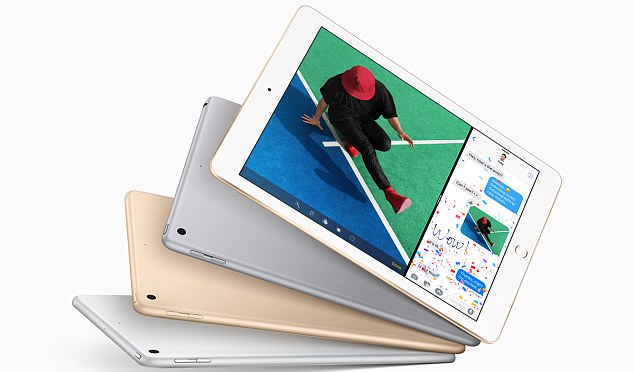
Apple is looking forward to bring a budget oriented iPad at the price point of just $250 to appease the price conscious buyers and to push the declining sales of the tablets. It has also been reported that Apple engineers has worked on developing a very new version of the FaceID system which has debuted on the iPhone X this year. Secondly Apple is also expected to launch a price war in the tablet segment which has been going through dismal sales with each passing month. But having a premium iPad from the Apple will help in igniting the interest in the tablets and it will also disrupt the dominance of the Android offerings in the tablet market at the similar price point.

Following the high of the early days of 2013 and 2014 Apple has simply failed to match up the sales and it is looking forward to new ways of making iPads a sensation once again. Apple saw a little bit of growth in the iPad sales due to the launch of the latest $329 iPad apart from that other iPad variants aren’t offering a glowing picture. At this point of time Apple is trying to lure the industrial enterprise customers as well as regular buyers who are quite sensitive to the premium price quoted by the usual iPad models.

Luring back the consumers


A major portion of the Apple revenue comes from the sales of the iPhones which has been growing at a good pace with each iPhone launch but same isn’t the case for the iPads which is a sign of concern for Apple. In 2017 Apple’s iPad business has simply had some really bad quarter which is quite worrying for Apple executives as iPad unit sales are declining with each passing year. Therefore Apple is all set to launch a price sensitive iPad boasting the new age features like the one seen on the iPhone X.

A redesigned high end iPad for 2018


Apple will be seen promoting the key selling feature of iPhone X which happens to the Face ID on the new lineup of the iPads. Rumors have even suggested will be opting for a similar all-screen look for the new premium iPads in 2018. This means users will have do away with the beloved home screen button the iPads after their disappearance on the iPhone with iPhone X. The new iPads will also have slimmer edges thanks to the non-presence of the old age ‘home button’.

Revamping the iPad design in 2018 will mark the passing of 3 whole years in between the major design change implemented with the launch of iPad Pro in 2015. When it comes to size the new models will feature the 10.5 inch used in the Pro model and sadly iPads will not be featuring the OLED panels which were first seen on the iPhone X. In short Apple is devising new ways to reignite the interest in the iPad gadgets amidst the rise of the phablets in the market.

Monday, December 4, 2017

MacOs: High Sierra 10.13.2 Beta Release

iPhone X
After a month, after releasing MacOs, High Sierra 10.13.1 and five updates, Apple brings to you the sixth version of MacOs High Sierra 10.13.2. Besides the usual bug fixes and security plugs that all versions of Os across all companies seem to do, MacOs High Sierra also seems to solve a security issue relating to the Macs.

Where can the Beta Version of MacOs High Sierra 10.13.2 be downloaded from? 


Any user with a valid profile can download the macOs High Sierra 10.13.2 beta version from the Apple developer center or the Software Update Mechanism from the Mac store.

MacOs High Sierra 10.13.2 fixes macOs vulnerability: 


Previously, Macs could be unlocked by simply putting “root” in the place of username with no password. This glitch seemed to unlock the macs making the Apple Pcs very vulnerable.

Apple said they would resolve the issue with MacOs High Sierra 10.13.1 but has been unable to do the same since the version’s release. Even with the release of the Beta version of MacOs High Sierra 10.13.2, there has still been no change.

With the release of MacOs High Sierra 10.13.2, sixth beta version, many users have confirmed that the bug seems to be fixed.

Apple Pay Cash release with MacOs High Sierra 10.13.2: 


With the final user version of MacOs High Sierra 10.13.2, Apple plans on bringing peer to peer mode of payment to its users through “Apple Pay Cash”. This feature seems to come with a renewable subscription.

Other Rumors surrounding Apple MacOs High Sierra 10.13.2: 


Besides some performance improvements and bug fixes, one of the most notable absences is the “AirPlay 2”. Apple plans on bringing AirPlay 2 to IPhones and IPads but at present only interface changes have come up so far with the beta launch of Apple MacOsHigh Sierra 10.13.2

With IOS 11.3 beta, a new display prompt was released which basically informs users when their Bluetooth or Wi Fi was deactivated in the control center. However with such a change, the Bluetooth and Wi Fi still remain active when it comes to AirDrop, Continuity and Watch connectivity. This does not seem to be the case when it comes to non- Apple devices and third party apps.

IOS 11.2 also introduced 7.5 watt wireless charging for Apple’s latest releases, the IPhone 8, IPhone 8 Plus and IPhone X.

Users are still awaiting the Watch Os 4.2 beta and Apple’s TvOs seems to be on its fifth beta run.


Tuesday, November 28, 2017

Device to Fix Your 16GB or 32GB iPhone Storage Woes

storage

A smart way to get rid of storage troubles on the 16 GB or 32 GB iPhone variants

When it comes to storage Android devices reigns supreme over the iPhone counterparts as it lacks the ability to enhance the storage. Apple has tried to offer some relief to the consumers by offering an incredibly higher storage option in the 2017 range of iPhone smartphones. But there are millions of users who are still stuck with the lower iPhone storage in form of 16 GB and 32 GB variants. Most of the users find it frustrating to deal with the ‘low storage’ alerts when trying to take a from their camera app.

It is widely known that Apple doesn’t allow users to increase the storage by not having a miscroSD card slot on the device. Therefore users have to either move all the media content to the cloud or transfer to another storage device or simply has to delete old photos, videos and podcasts to pave way for new apps or content. However it isn’t the end of the world for the iPhone users as number of external microSD card devices are emerged on the horizon which aims to offer unlimited storage options.
 

Two devices to try for additional storage

 
One such device which can you in boosting iPhone storage is Leef iAcess MicroSD reader for iOS which retails at just $A 65. This offers a pathway to the ‘infinite memory’ on an iPhone without costing a fortune. This device wrap around the back of the iPhone without obstructing the front view as much as possible. If you don’t want to get a humpy device protruding at the back of your iPhone then opt for a wireless media hub which basically uses Wi-Fi connection to do same thing.

Investing in 1TB Western Digital My Passport Wireless external hardrive for a price tag of $220 will help in getting massive iPhone storage. It is compact external hard drive in shape of a small square which can be easily carried around to back up not just your iPhone but also iPad, iPod and other devices. It is worth mentioning that Apple also offers portable drivers on its website which does the same thing.
 

Another smart way to boost your storage

 
The best way to keep more space available at all times for new apps and media content is to get the Apple’s cloud storage service. Users can make use of the Apple’s Optimize Storage setting in order to transfer the full resolution photos on the iCloud and keeping the internal storage free. In order to enable this feature simply to the Settings followed by iCloud and Photos.

Videos are known to be biggest storage hogs on a smartphone so when it comes to iPhone storage having high resolution videos on the devices isn’t helpful. There is no need to shoot every video in the 1080p resolution rather go to the Settings followed by Camera and set the minimum resolution to 720p in order to save on more space.

Monday, November 27, 2017

Apple's iPhone SE 2 Could Launch Early Next Year

Apple is All Set to Launch the iPhone SE 2 in the First Half of 2018 

A number of reports has surfaced online suggesting that will likely be launch the next version of iPhone SE in the first half of 2018. It is been expected that Apple will retain the small size and ergonomic design of the first version of iPhone SE. Some of the reports had even hinted that the production of the iPhone SE 2 is being assembled at an Indian factory in Bengaluru by Apple’s manufacturer Wistron. It is worth noting Apple has assembled quite a number of iPhone SE smartphone at this facility in the past.

Retaining the good things

It is widely speculated that Apple will keep with its launch cycle by bringing the iPhone SE 2 in March 2018 just like it launched the first SE device in the March this year. Apple will not be tinkering with the compact 4inch screen size of the SE as it was selling point of the first device itself. iPhone SE 2 is likely to feature the latest processor A10 Fusion chips along with the features like Touch ID and one camera setup.

It is highly unlikely that Apple will be bringing the FaceID feature to the lower end models anytime soon in order to keep ‘X’ factor of the iPhone 10 alive. The edge-to-edge display is also out of the question for this small iPhone. When it comes to pricing Apple is likely to price the iPhone SE 2 at anywhere around $450. Reports has even hinted that Apple will be targeting the Southeast Asian market with the iPhone SE2 apart from India in order to boost its iPhone sales among the price conscious buyers.

Bringing new features

Apple iPhone doesn’t support dual SIM which has become a major necessity in the modern times. It is highly expected that Apple will start offering the support for dual SIM with the upcoming iPhone SE 2. A insider tip from the renowed KGI analysts named Ming-Chi Kuo also sheds light on the fact that Apple will be launching three new iPhones in 2018. All of these smartphones will featue the Intel’s XMM 7560 and Qualcomm’s Snapdragon X20 modems in order to offer better and enhanced LTE data transfer along with support for Dual SIM as well as dual standby.
Get ready for three iPhones in 2018
He also said that the new three models of the iPhone for 2018, two will feature OLED displays while one will come with stable LCD display. One of the surprising speculations made by him is that Apple will be bringing the edge-to-edge display on all the devices just like iPhone X. It is worth noting all the major Android smartphones has started offering some kind of edge-to-edge or bezel less display on all the upcoming smartphone ranging from the budget, mid-range and high end segments. Therefore having all the iPhones with the iPhone X like display will be a smarter and sensible choice on the part of the Apple.