Saturday, January 2, 2016

LG Display, Samsung Display to supply OLED screens for iPhones


Jobs

Apple’s iPhone OLED – Samsung/LG


Taking into consideration the increasing number of rumours claiming that iPhones would soon be integrating OLED display technology, a report from South Korea states that Apple will be soon finalizing a supply agreement which will see Samsung as well as LG Display with the necessary panels in the upcoming handsets.

Quoting unnamed industry sources, the Electronic Times the local Korea times recently reported that Apple would be reaching a decisive supply agreement with the display arms of Samsung and LG and both of them will have experience in creating flexible OLED panels. OLED products for Apple Watch have already been supplied by LG and it is rumoured to be the exclusive supplier for the next gen wearable for Apple.

It is said that the two Korean companies would be injecting around 15 trillion won, around $12.8 billion, by way of capital expenditures for the next two to three years in order to build out production facilities with the potential of churning out OLED panels in adequate numbers to meet the traditionally robust iPhone demand. Apple would be supporting with the equipment costs, though the report did not offer any specifics.

From LCDs to OLEDs


LG intending to repurpose the prevailing LCD production lineto reduce cost, is apparently focusing on moving from a present 4.5G manufacturing process to a sixth generation method though the production yields are in query since the technology is yet untried. Samsung also presumed to be supplying Apple Watch OLEDs, figures in the equation and is expected to net 30% less orders than LG.

Negotiations had been drawn out in part, according to sources, since Apple drove a hard bargain to drive Samsung in accepting the low single digit margins on its sale of OLEDs. For a long time it was rumoured that Apple intended to switch away from LCDs to OLED modules for its flagship smartphones and the speculation grew more urgent when competitor Samsung had adopted the display tech.

The iPhone makers as usual took a stand of wait and see approach and this year introduced the first OLED product in its Apple Watch. A rumour in June, mentioned that Apple had been looking in adopting flexible OLED displays in 2018, a timeframe which tends to fit in appropriately with today’s report.

OLED Screens – Thinner/Improved Image Quality


Last month, Japan’s Nikkei newspaper had reported that Apple plans to begin utilising OLED screens for its iPhone beginning in 2018.OLED screens seem to be thinner and provide improved image quality than the mainstay liquid crystal display screens.

Both the companies are close to a final agreement with Apple for the screens but have declined to comment on the same. According to the paper, Samsung Display that is currently supplying OLED smartphone panels to it parent Samsung Electronics and Chinese vendors is possibly getting a larger volume from Apple than LG Display.

 Apply could also be working on new screen technology at a secret laboratoryin Taiwan, indicating that it may switch to an improved LCD panel before introducing the OLED in the future or it could be a backup if the OLED deal may not materialise.

Friday, January 1, 2016

How to Free Up Space in iCloud


iCloud
Deletion of backups – Helpful in Conserving Valuable Storage in Apple’s iCloud


Deletion of numerous backups could be helpful in conserving valuable storage in Apple’s iCloud which is Apple’s cloud based content storage system for its Mac and iOS products. iCloud storage service of Apple can be utilised to stack photos, videos, device backups and much more in the cloud. Free space of 5GB is offered by the company to the users but since it is 5GB of space as per Apple ID and not per device, one may find themselves running short of space faster.

Though extra storage could be purchased from Apple, there are options of making up free space in the iCloud account prior to purchase of additional storage. In order to check how much space is being utilised, one could enter Setting on the iPhone or iPad and opt for `iCloud’ then click `Storage’ followed by `Manage Storage’.

There could be a possibility that the backups could be utilising most of the space and if the user has backups from the old device either from an iPhone 4 or iPad 2, which is no longer in possession, they could go ahead and delete the same, by clicking on the backup scroll which is towards the bottom, tap the `Delete Backup’.

Unwanted Items - Deleted


There could also be chances of backing up items which may not be needed and have it saved in the cloud. You could go to Setting and click on iCloud from where you could choose items which you would like to be saved to iCloud and delete whatever is not needed. This will ensure that it is not backed up when you perform a backup the next time.

A stress-free option to free up space in iCloud is to delete photos from backups and instead of having photos stored in iCloud, you could use one of the several third party cloud service which tend to provide more free space than Apple. Google Photos tends to offer unlimited storage for free. Besides this there is also Yahoo’s Flickr app, DropBox, Microsoft One Drive as well as Amazon Cloud Drive.

User could install these apps which automatically back up your photos and have the app start backing up the photos to a separate pool of storage. User would have a backup copy of the photos stored online and get to keep all of it in the iCloud storage whenever needed.

Disable Camera Roll Backups


Users may also disable Camera Roll backups wherein the photos are backed up to a different service. iCloud’s Manage Storage screen enables the user to manage `Document and Data where these are documents, settings, save games besides other bits of data which iCloud syncs between the various devices.

They depend on iCloud storage and files which are not of much importance can be deleted. One could tap an app under `Document & Data’ on the Manage Storage screen to see the files occupying space. User could swipe a file to the left and tap `Delete’ in order to erase it from the iCloud storage.

The user needs to be careful while deleting files since there could be a possibility of deleting important documents together with other files which could be of great importance.

Tuesday, December 29, 2015

How Apple’s Trojan Horse will Eat the Credit Card Industry


Apple_Pay
Apple has launched its mobile app payment system called Apple Pay last year among much fan fare and great support from the credit card industry. Apple Pay partnered with a number of banking institutions which issued credit cards. It was supported by the credit card because it solved the most critical technology issue and infrastructure problems which were being faced by the credit card industry. Apple Pay in other hand offered a new avenue for growth for the credit card industry.

Apple Pay is like a Trojan horse for credit card industry

Apple Pay is not yet a popular name in the field of transaction but it is growing at a steady pace, which ensures that it will achieve wider popularity within few short years. Apple has recently announced a deal with China’s Union Pay, which will allow it to operate nationwide in China.

The credit card industry should remain vary of the Apple Pay as it a Trojan horse for them. Once Apple has successfully established its platform on a larger level across the globe then it wouldn’t need the help of banks and credit cards at all. Apple will be able to take advantage of another great technology named blockchain, which will acts an alternative payment option. Bockchain happens to be core technology behind popular Bitcoin and it can function as a transparent ledger of the transactions.

Apple advantage over credit card industry

One of the biggest advantages, which Apple has over the credit card industry, is that it is supported by a grand magnitude of iPhone loyalists. iPhone has a cult-like following all across the globe which brings a great opportunity for the Apple to push the Apple Pay to its followers with each software update or new product offering. But it wouldn’t be easier for the Apple to change the habit of the people but with time we will see a wide number of users actively adopting the Apple Pay platform for making day-to-day transactions than the credit cards.

Apple is also financially equipped to push the usage of Apple Pay by offering credits on purchasing of an iPhone along with exclusive discounts on iTunes store. Even the rebates for credit card fees can also be used for buying the music on the iTunes, iPhone accessories or movies on Apple TV. Currently there aren’t enough outlets throughout the globe, which accepts Apple Pay, but with time it is expected to gain huge momentum.

Credit card companies failed to popularize the use of chip and pin technology

Credit card companies simply failed to force the merchants to install a new chip and pin technology. It should be noted that merchants had complained a lot the time taken by the credit cards in reading card cards. This not just annoys the customers but also costs money in lost transactions. Even this system doesn’t have a uniform guideline for usage as in Europe chip-and-pin transactions require both the chip in the card and a pass code while in US terminals only need the chip.

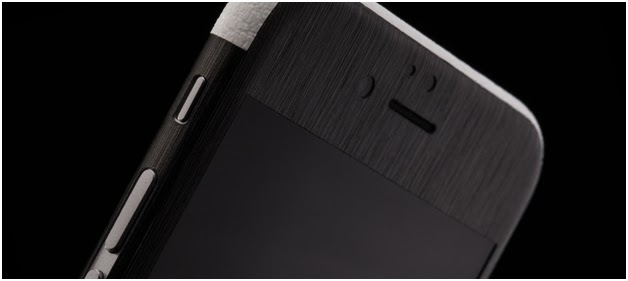
An iPhone 6s Skin Makes a Perfect Stocking Stuffer


iPhone
You’ve made your list, and you’ve checked it twice. With only a month left until the big day, there are a handful of weeks to complete your shopping. If that brews anxiety in the pit of your stomach, you’re not alone. People around the world dread December shopping. You and every other reluctant shopper are in luck, however! You can avoid the stress of packed shopping malls by visiting an online retailer of iPhone 6s skins.

What’s so special about iPhone 6s skins? First of all, they provide the best in protection, which will save your loved one the heartache of ruining their phone. How often have you heard about people gouging their iPhone and ruining its sleek design? Or when someone’s dropped it and shattered the notoriously fragile touchscreen? Without a skin, your friend, family member, or partner will see similar damage to their 6s. iPhone 6s skins are designed to take the brunt of these damages, saving the vulnerable body from scratches and dings. These skins also make it easier for the user to handle their phone, as they’re made out of an ergonomic vinyl that enhances the grip of a typical iPhone. With more to hold on to, the chances of your loved one dropping their phone and shattering it are slim to none.

Secondly, iPhone 6s skins are designed with style in mind. These aren’t ugly or boring sheets of vinyl that wrap around their phone. The vinyl is a flexible material that’s custom-cut to the unique specifications of the 6s. As it provides unparalleled protection, it can take on a lot of different designs. When you head online, you can see the selection and choose a combination that best suits your loved one’s personality. Let’s face it—the iPhone 6s isn’t known for its individuality, but with a personalized skin, the person on your list can have the most unique iPhone in the neighbourhood.

The third reason is its price. We all know that the holidays can add extra strain to your budget, even with the best laid plans. It’s important to know that a gift of style and protection won’t put your budget out to pasture – if you know where to look. You can find the perfect gifts for iPhone 6s users at dbrand, as their skins are moderately priced. Inexpensive though they may be, they won’t sacrifice on either protection or fashion, as they use the best quality of 3M vinyl precision cut by talented engineers.

The importance of precision in the 3M vinyl is so that the full phone can be covered without interfering with its unique design, features, or buttons. Tough, sized, and easy to apply, iPhone 6s skins make great gifts for any iPhone user in your life. They’re the total package, as they provide protection for such a valuable (and expensive) phone and add style to a lacklustre design. Best of all, they’re easy on your budget, so you can get a couple for everyone on your list.

Saturday, December 19, 2015

Dividing the Screen in Mac OS X


Mac
Apple Mac devices are widely popular among the users due to its incredibly secure OS X which safeguards from a wide number of malwares and an incredible set of features which makes laptop more productive. Apple has introduced a SplitView feature in Mac OS X which allows users to quickly and evenly divide the screen between two programs which aid in multitasking. Most of the users sadly don’t know how to use the SplitView feature which limits their ability to get more out of the Mac device. Here are some smart and simple steps which will help in dividing the screen in Mac OS X.

How to access the Split View Mode? 

Boot up your Mac device and select the open window of the first program you wish to use. Now in the upper left corner of the screen click and hold on the green button this will launch the program in full screen mode. If nothing happens on pressing down the green then open Mac’s System Preferences from the Apple menu or from the Dock icon. Give a click on Mission Control and ensure that you had enabled the ‘Displays have separate Spaces’ in the settings.

Get two programs in evenly divided screen

In order to shrink the window of the program simply ‘hold’ down the mouse button or trackpad. Now drag the shrunken window to the side screen you prefer and let go of the mouse button or the trackpad. In order to bring another program in the Split View mode or in the half of the display screen give a click on another window which will make it pop up. Now simply fill the other half of the screen right next to the first program you had chosen earlier.

You can easily see both the chosen program windows are filling the screen in an evenly manner. In this Split View Mode users can easily switch back and forth between the two programs simply by clicking on them.

How to get two programs in Split View when one is already in Full Screen Mode? 

In case you are already working on a program in full screen mode and wish to start the Split Screen mode then follow these steps. Go to the Split View by opening the Mission Control, give a click on Mission Control in the Dock or simply press the Mission Control Key on the keypad.

Once the Mission Control view is open, drag the window of your opened program right onto the thumbnail of the program open in full screen mode. Now you will see two programs running smoothly in an evenly divided screen on your Mac OS X.

How to move out of Split View Mode? 

In order to get out of the Split Mode simply give a click on the green button present at the upper corner of the screen and it will bring back to the standard Mac desktop mode. Users can also simply give a press on Mac’s Escape (Esc) key to get out of Split View Mode.